

This article covers unlocking periods within iplicit's Financial Year setup. If a period is locked or not visible, you will not be able to raise documents or process journals against it. This article also explains the 'cannot create a duplicate period as another already exists' error, which occurs when a period already exists in a locked state.
Unlocking a period in iplicit
- Navigate to the Financial Year screen
- Click into the financial year that contains the period you need to unlock
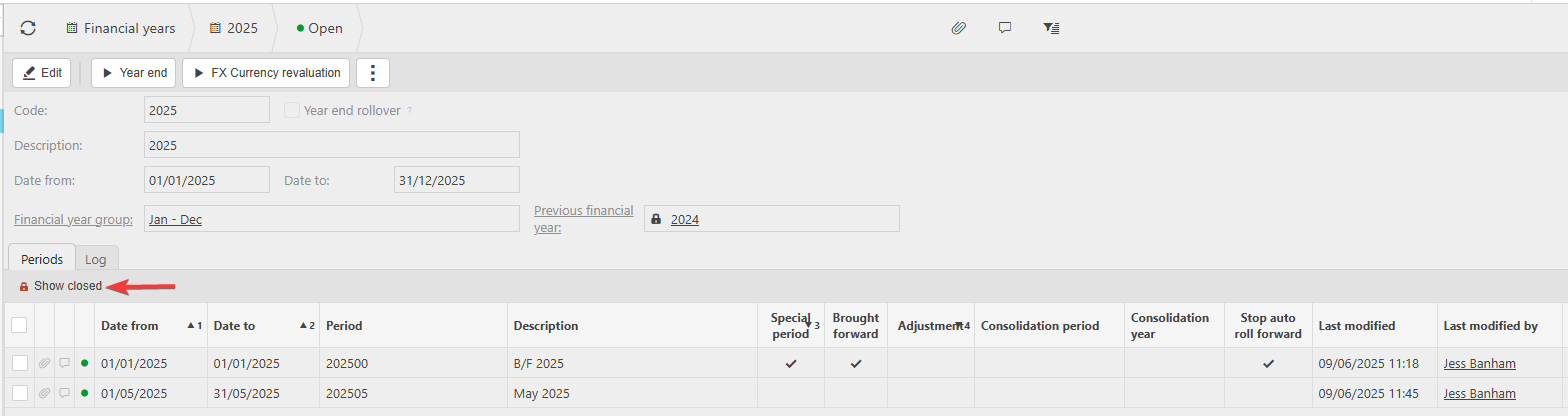
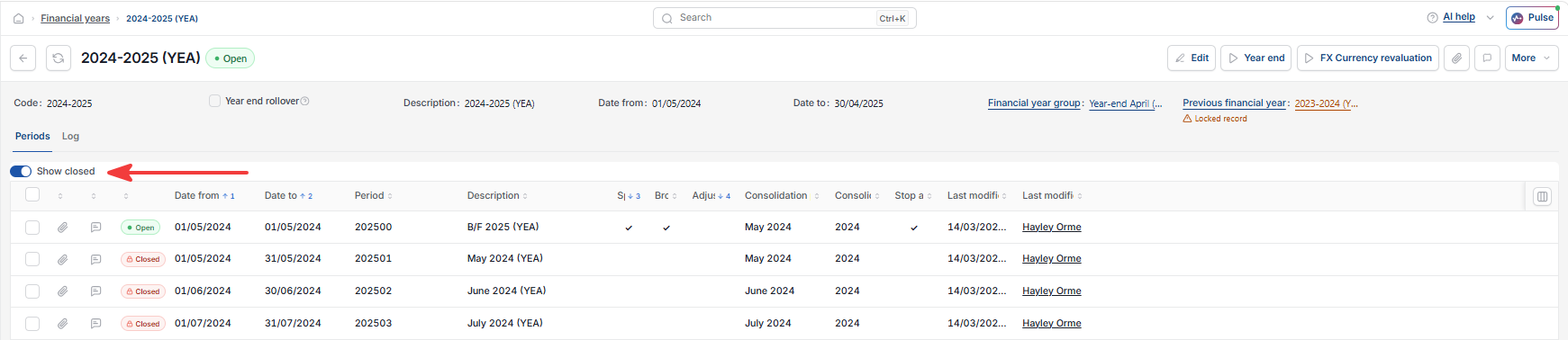
- Select 'Show Closed' to make locked periods visible
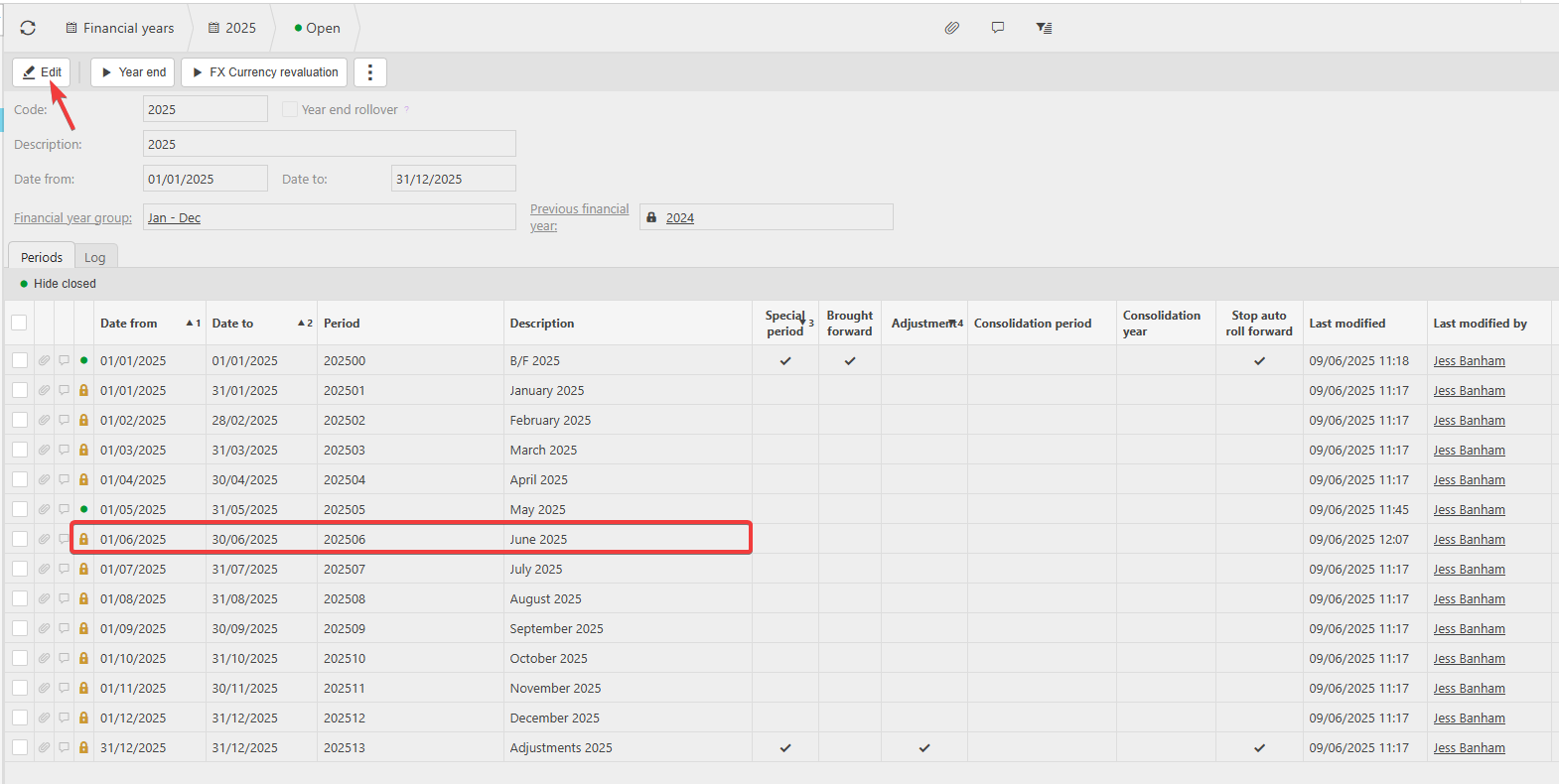
- Locate the period you need to unlock
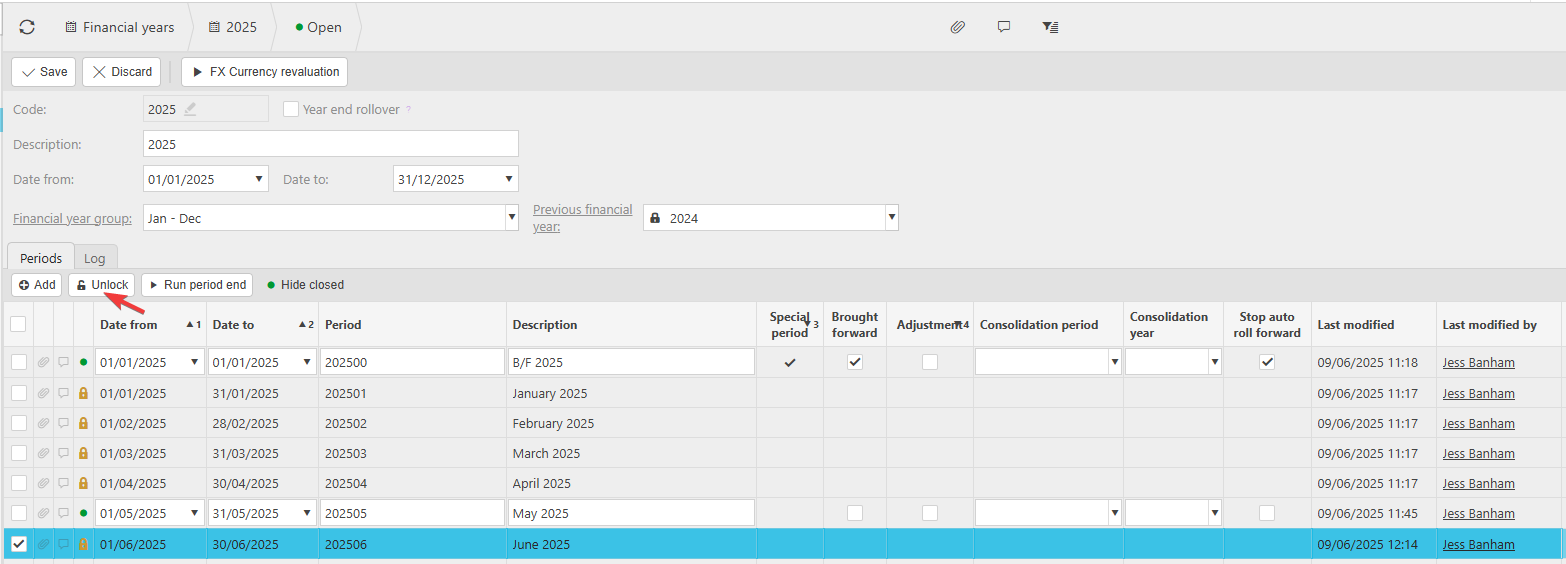
- Select the period, click 'Unlock'
- Click 'Save'. The period is now unlocked and available for use.
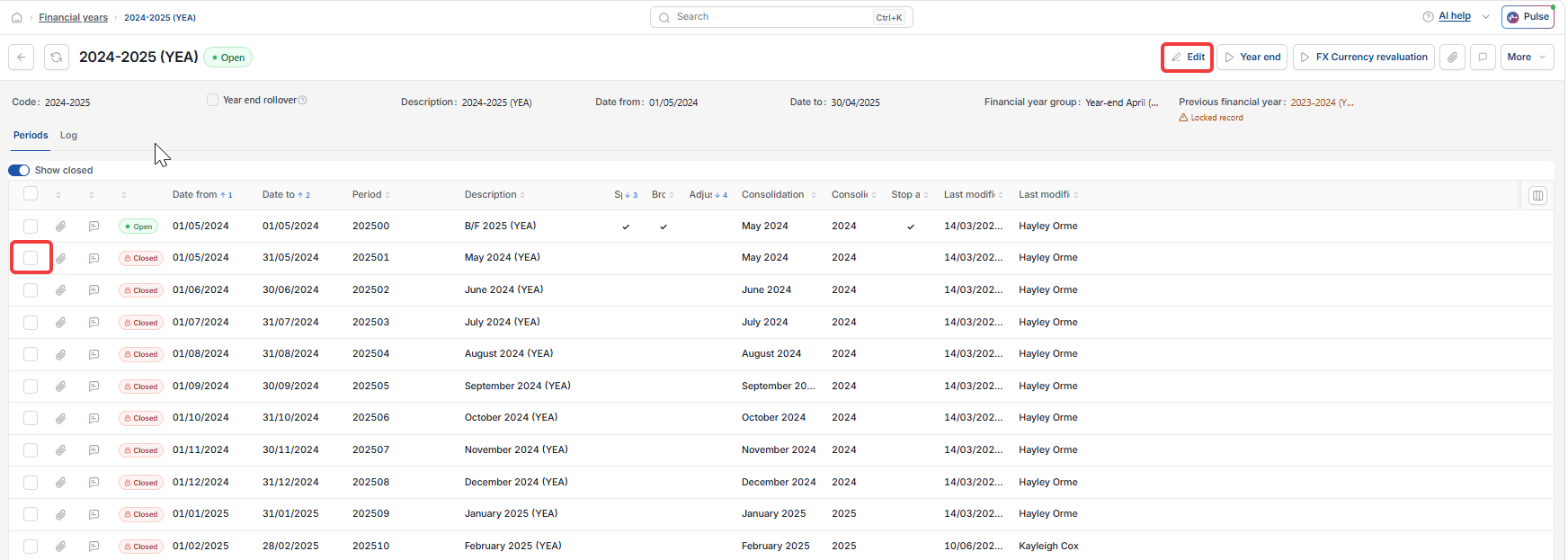
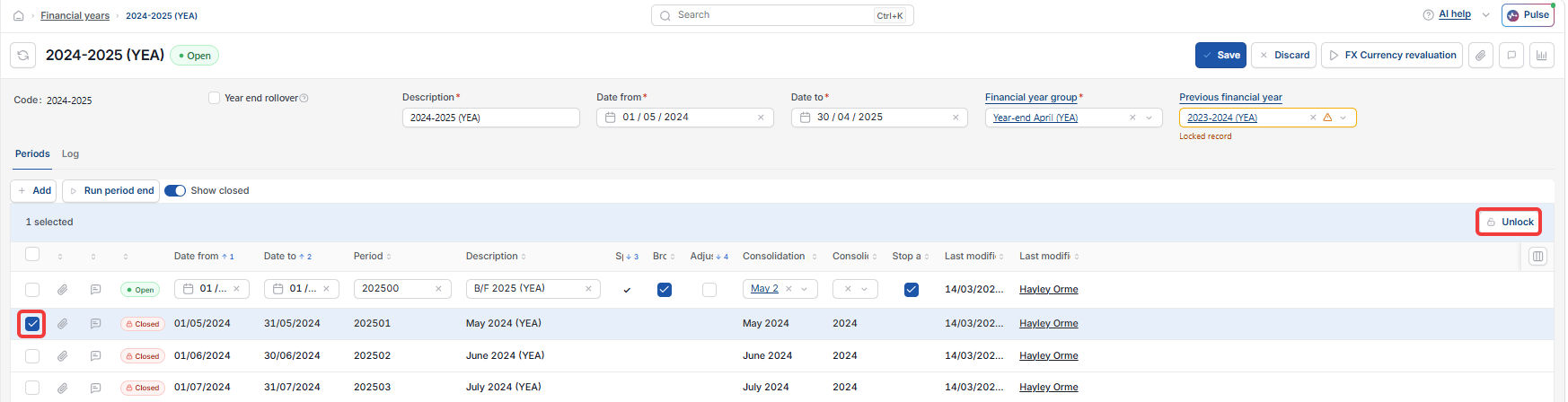
If the period is not visible
If the period does not appear in the list, ensure 'Show Closed' is selected. Locked periods are hidden by default and will not appear until this option is active.
'Cannot create a duplicate period as another already exists' error
This error appears when you attempt to create a period that already exists in iplicit but is currently locked. Because locked periods are hidden by default, the period is not visible – which can make it appear as though it does not exist.
This commonly occurs in the following situations:
- After a period end process, when opening the next period
- After running the year-end rollover (YERO), when trying to open the brought-forward (b/f) period
- During the year-end rollover process itself
To resolve this error:
- Navigate to the Financial Year screen
- Click into the relevant financial year – for example, 2026-2027
- Select 'Show Closed' to expose all locked periods
- Locate the period showing the duplicate error
- Select the period, click 'Unlock'
- Click 'Save'.
Do not attempt to create a new period. The period already exists – it simply needs unlocking.
Unlock period
Period locked
Open closed period
Unlock account period
Period unavailable
Duplicate period