

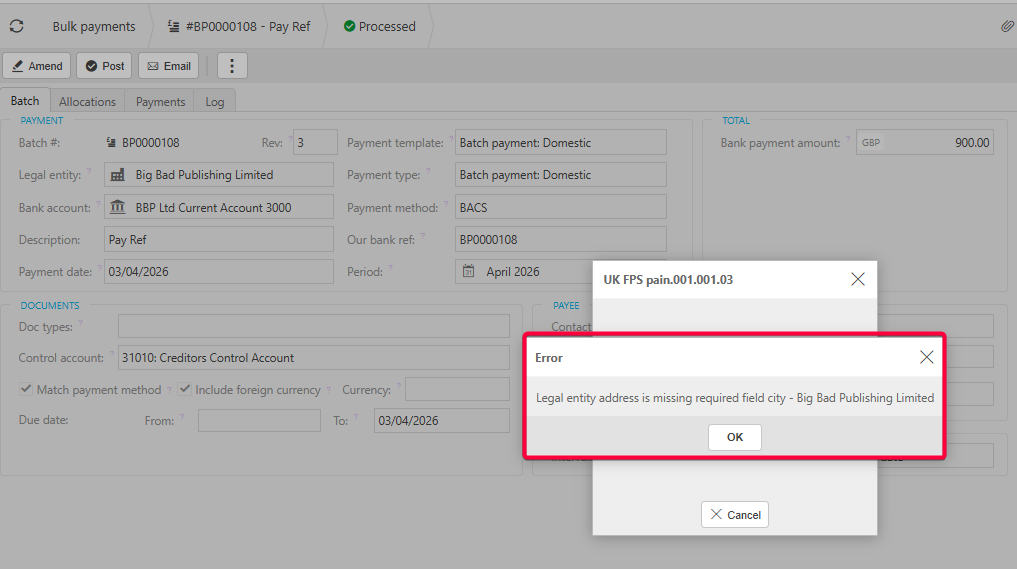
This article covers why a payment file fails in iplicit with the error 'Legal entity address is missing required field city' (or another address field), including BACS file errors. There has been an update to SEPA and related payment file formats to meet the structured address requirements in ISO 20022 SEPA. iplicit now needs a complete address on the bank branch and on the registered address of the legal entity you are paying from.
The payment file error for a missing address
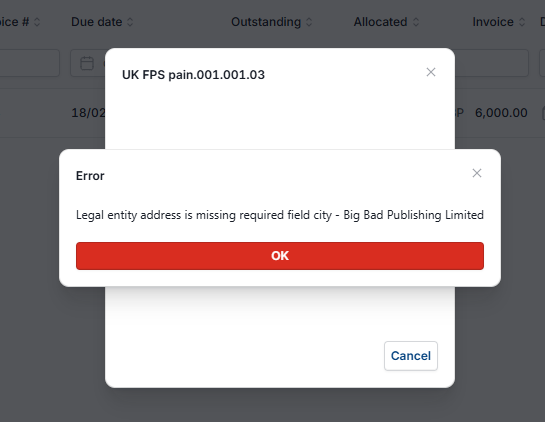
When you process a bulk payment using an affected payment file format, iplicit shows an error message if an address is incomplete, for example 'Legal entity address is missing required field city'. The message names the missing field and the legal entity.
Which payment file formats need a complete address
The change affects the following payment file formats:
- Bank Of Ireland – SEPA pain.001.001.03
- Bank Of Ireland – SEPA pain.001.001.09
- HSBC Cross-border USD pain.001.001.03
- HSBC SEPA Priority Payments UK HSBC_pain.001.001.02_TARGETandInternationalPayments_United Kingdom
- HSBC SEPA UK BACS ACH Credit HSBC_pain.001.001.02_LowValuePayment_UK BACS
- HSBC UK FPS pain.001.001.03
- Non SCT pain.001.001.09
- SEPA pain.001.001.02
- SEPA pain.001.001.03
- SEPA pain.001.001.09
- SWIFT PSET pain.001.001.03
- UK FPS pain.001.001.03.
Completing the branch address and legal entity address to fix the payment file error
Complete the addresses in this order, then process the bulk payment again.
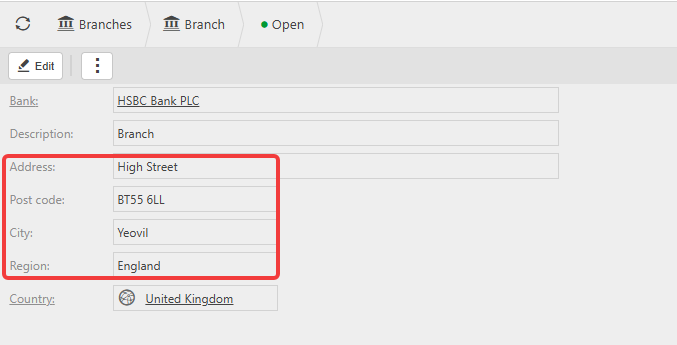
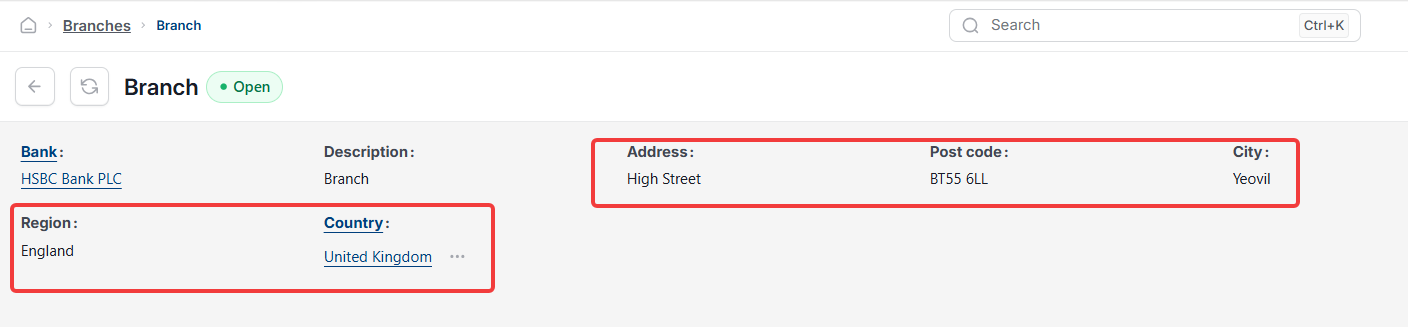
- Open the 'Branches' record for the bank you pay from and select 'Edit'
- Complete the full address: 'Address', 'Post code', 'City', 'Region' and 'Country'
- Save the changes
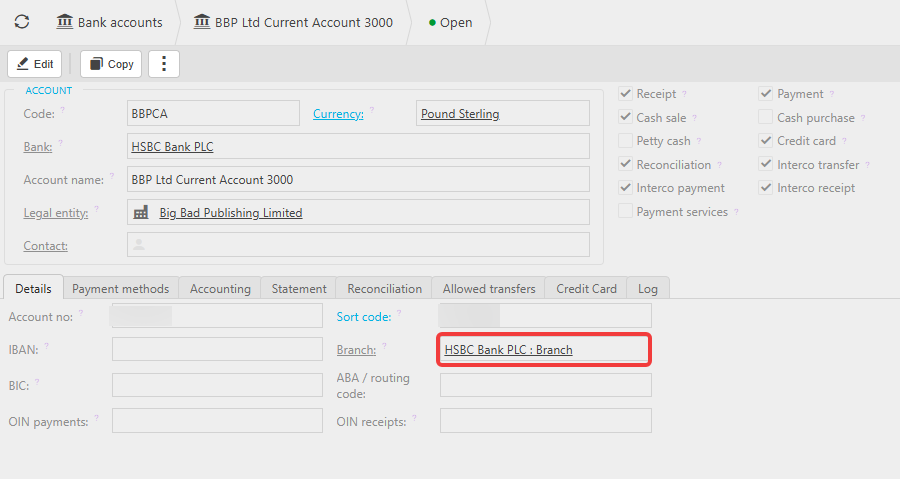
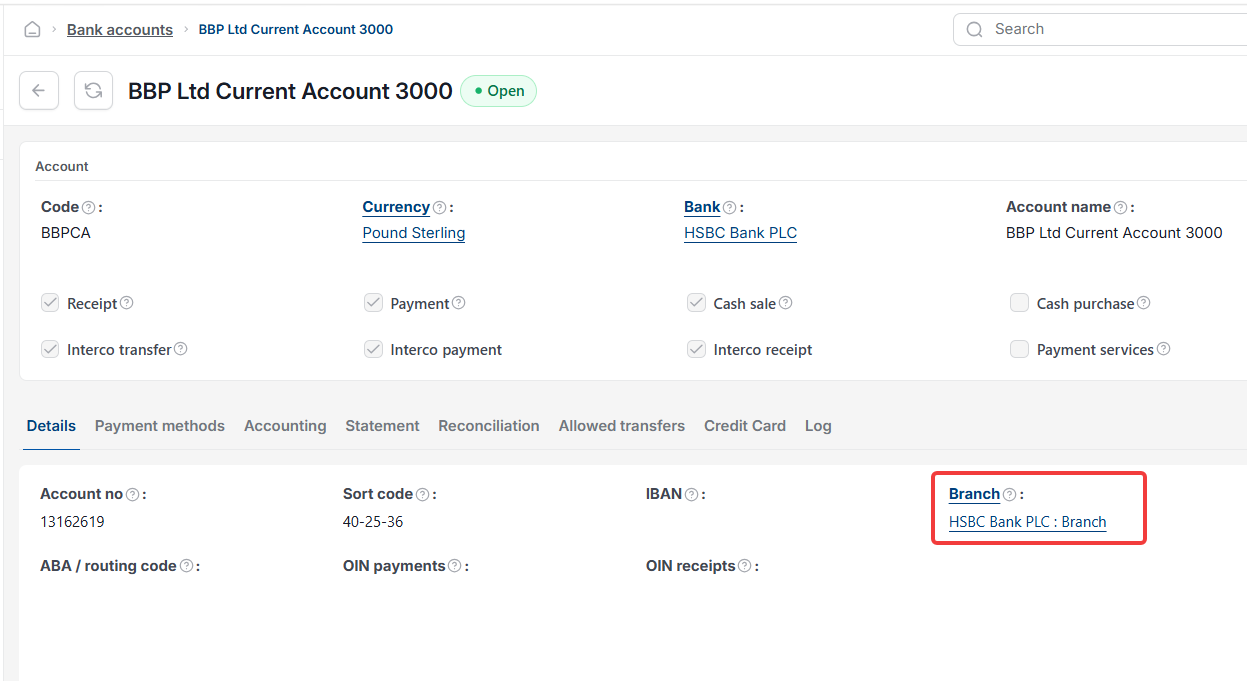
- Open the bank account you pay from, select 'Edit' and link the branch to the bank account on the 'Details' tab
- Save the bank account
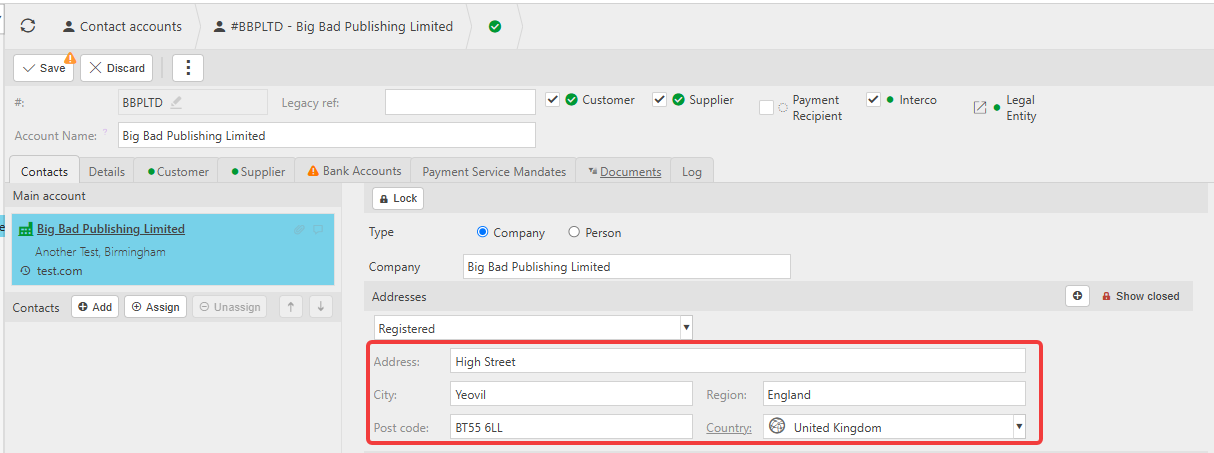
- Search for 'Legal Entities' and open the legal entity named in the error
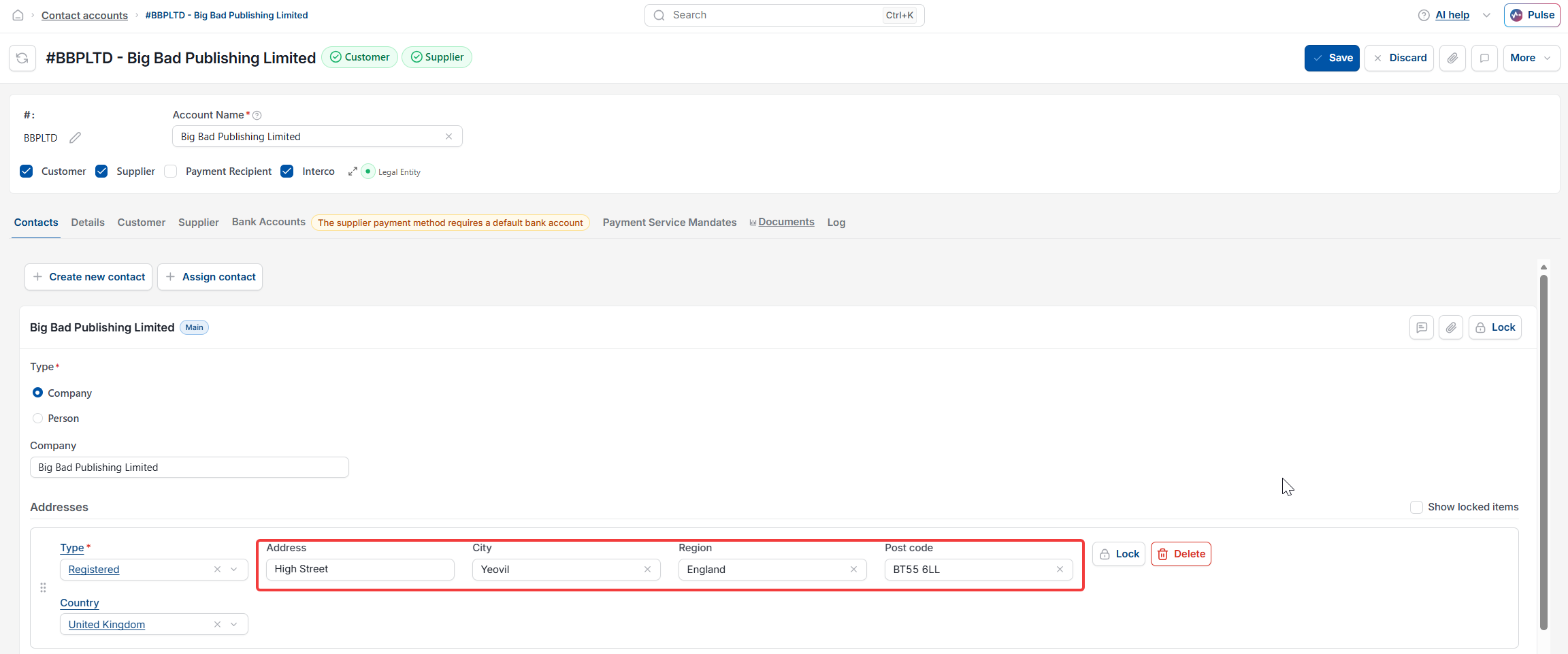
- Drill into the contact account and select 'Edit'
- Complete every field of the registered address, including 'City'
- Save the changes
- Return to the bulk payment and process it again.
Repeat steps one to five for the branch on every bank account that uses one of the payment file formats listed above, and steps six to nine for every legal entity you pay from.


Legal entity address is missing required field city
BACS file error
Payment file error address
SEPA payment file error
pain.001 file error
ISO 20022 structured address
Bank branch address missing
UK FPS payment file error
Bulk payment file not generating