

This article covers how to run depreciation (sometimes called depreciating an asset, a depreciation run or month-end depreciation) for fixed assets in iplicit's Fixed Assets module. Depreciation reduces the book value of a capitalised asset over its useful life and creates journal entries in the General Ledger. iplicit calculates depreciation automatically based on the method and schedule set on each asset. You trigger the calculation by running the depreciation automation, either manually or via a scheduled run.
Before running depreciation for fixed assets
An asset must be capitalised before depreciation can be processed against it. Confirm the following are also in place before running the depreciation automation:
- The 'Asset Depreciate' (ASSDEP) document type is unlocked
- A document series is active, unlocked and dated before the asset's purchase date
- Both the 'Depreciation charge' and 'Depreciation' account defaults are configured for the asset group.
See 'How to set up document types and series for fixed assets in iplicit' and 'How to configure account defaults for fixed assets in iplicit'.
Running the depreciation automation
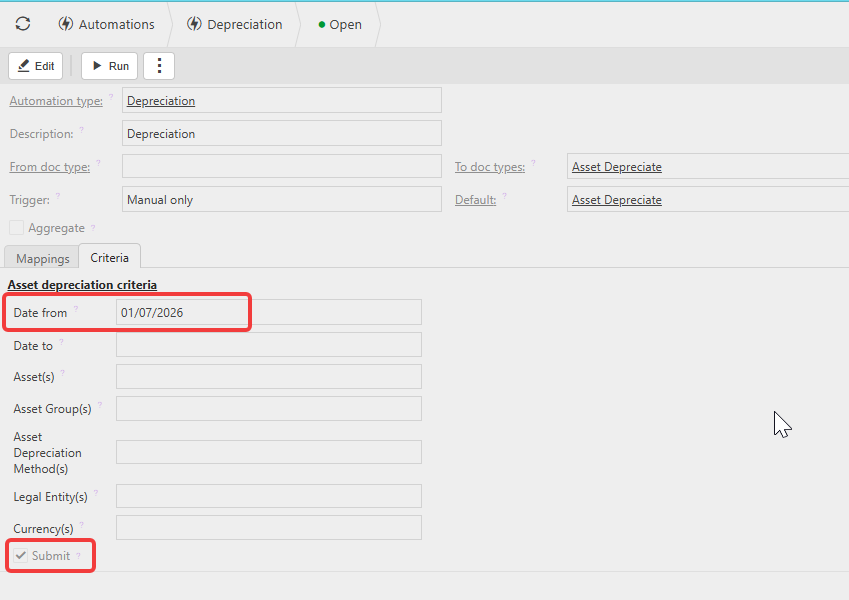
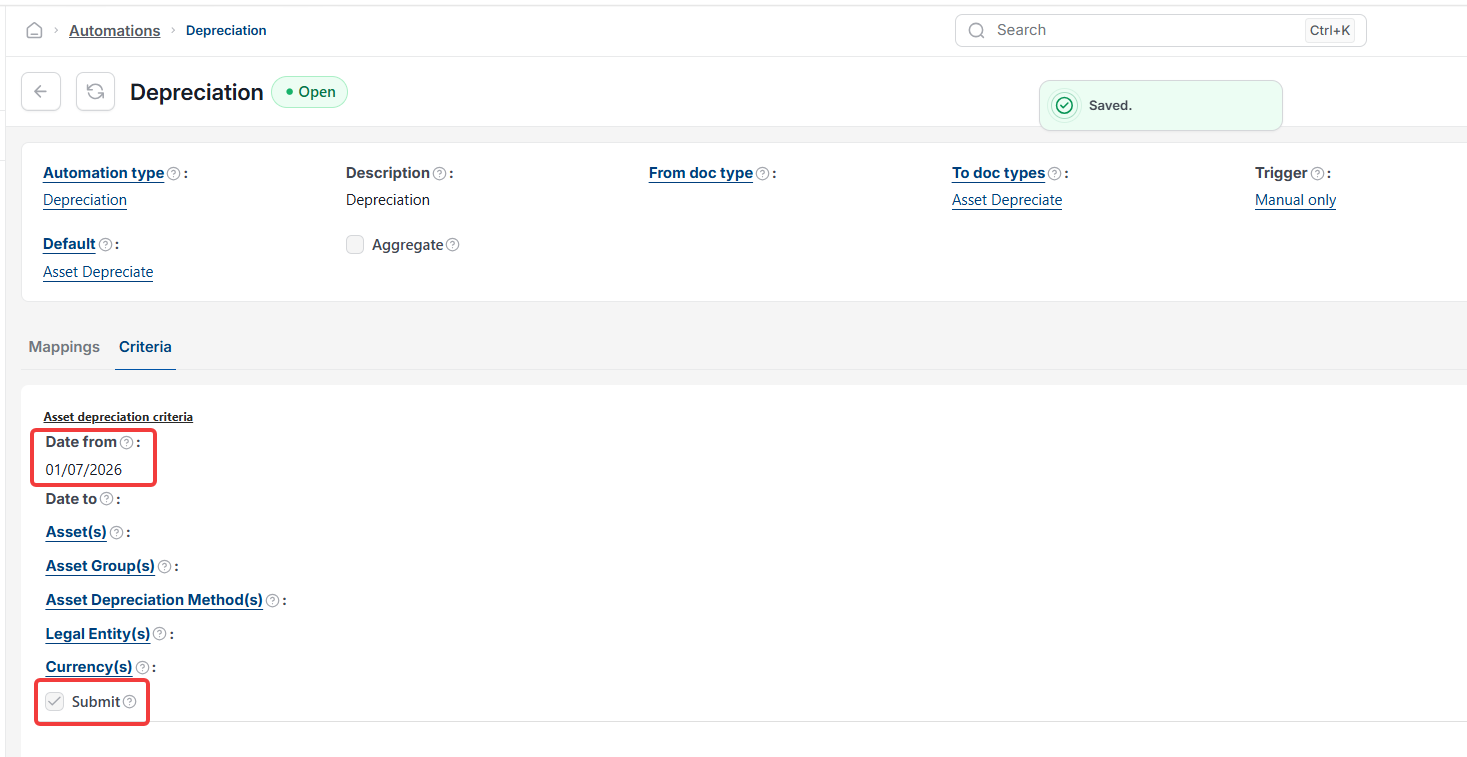
- Navigate to 'Automations' and open the depreciation automation
- Set the 'Date from' field – this controls which periods are included. If you want to capture depreciation for a period earlier than the pre-populated date, set the date back manually
- Use the available filters to run depreciation for all assets at once, or narrow to a specific asset, asset group or legal entity for a singular run
- On the 'Criteria' tab, tick 'Submit' if you want the resulting journals to be submitted automatically. If left unticked, journals are created in draft and must be submitted manually from the 'Asset Journals' screen
- Select 'Run'.
iplicit generates depreciation journals for all qualifying assets within the selected date range.
Reviewing fixed asset depreciation journals
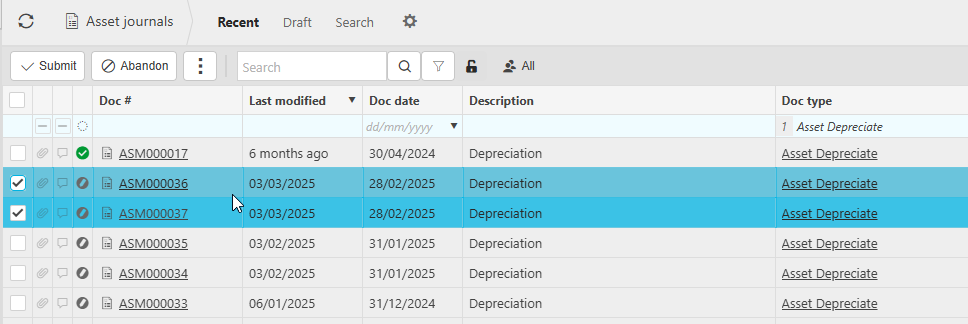
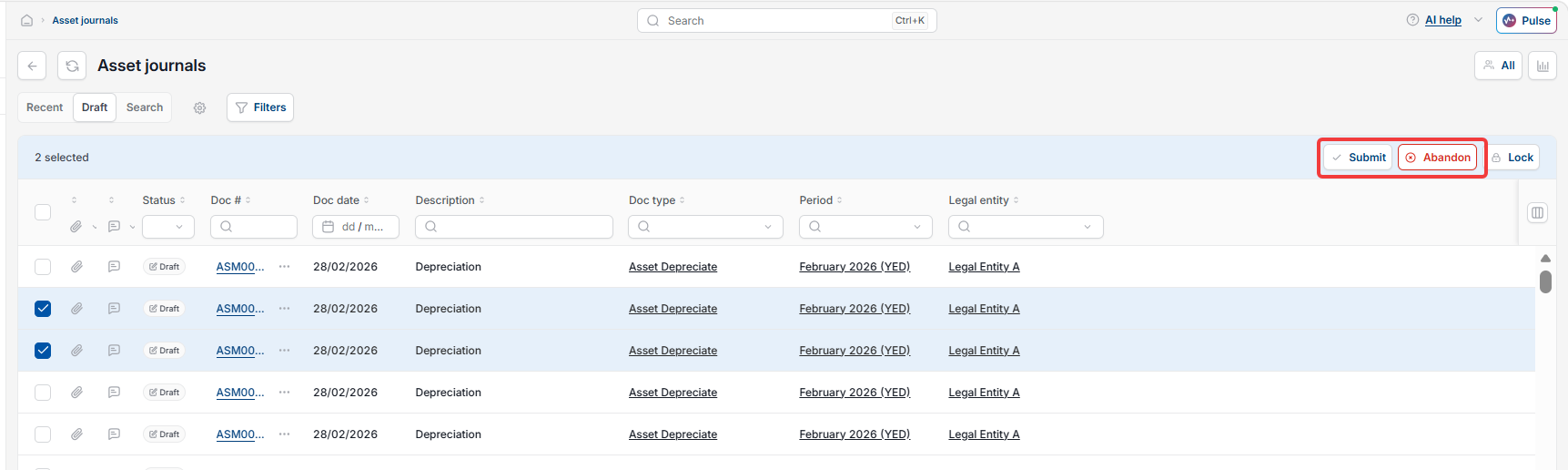
All asset-related journals – including depreciation – are visible on the 'Asset Journals' screen.
- Select 'Asset Journals' from the main menu, or enter 'Asset Journals' in the quick search (Ctrl+K)
- Review the journals created by the depreciation run
- If 'Submit' was not ticked when running the automation, select the relevant journals and submit them from this screen.
Asset journals cannot be edited in draft. The only correction available after posting is to amend posting attributes. Individual journals cannot be unposted – if a correction is needed after posting, use the 'Uncapitalise' function on the asset record to reverse all transactions and start again.
Viewing the depreciation book on a fixed asset
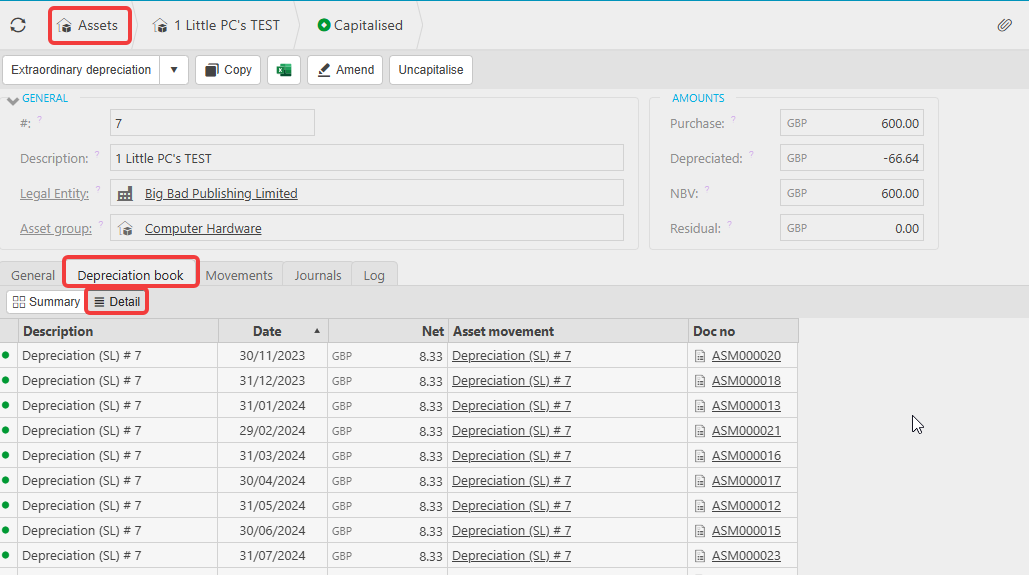
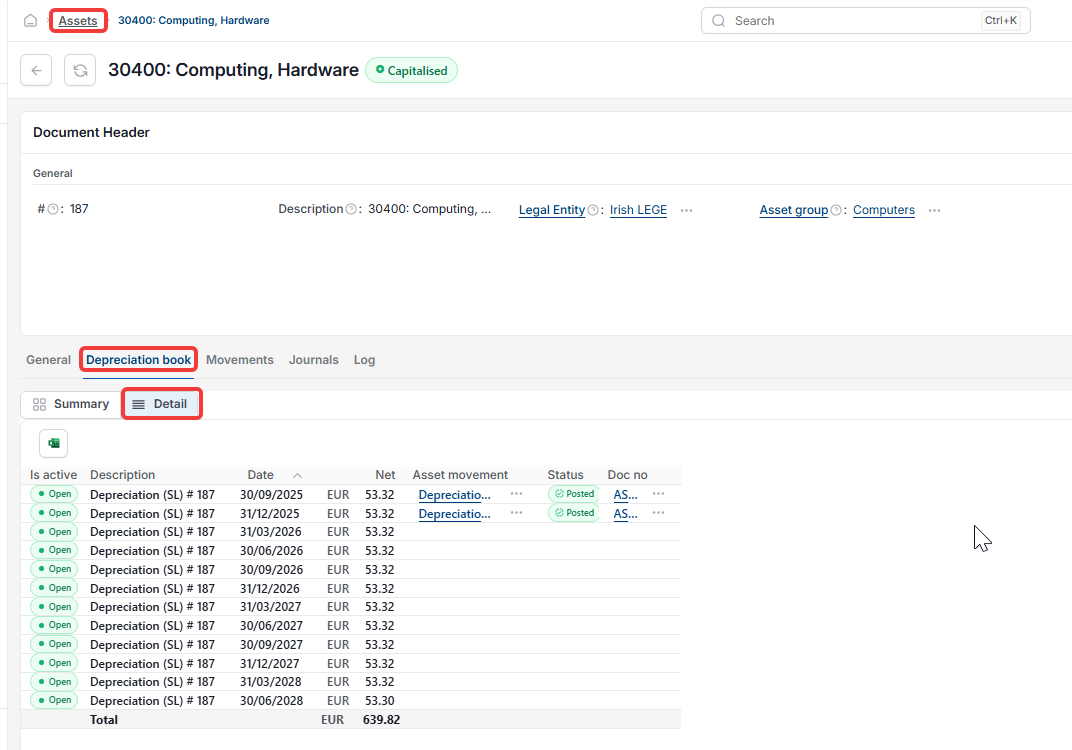
Once depreciation journals are posted, the running depreciation values update on the asset record.
- Open the asset record from 'Assets'
- Select the 'Depreciation book' tab to see the full depreciation schedule and posted values.
Scheduling depreciation to run automatically
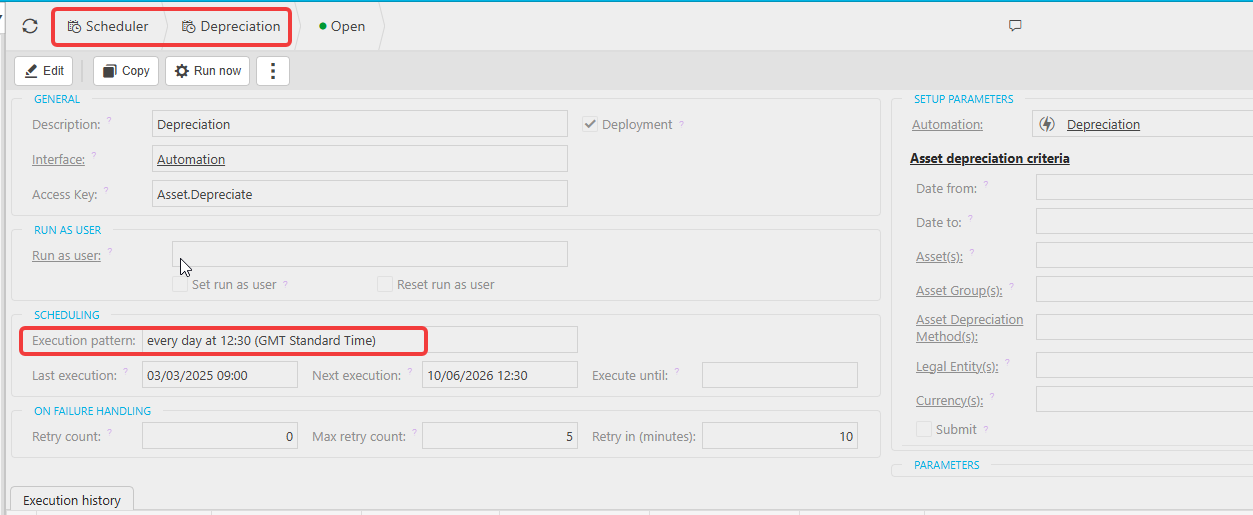
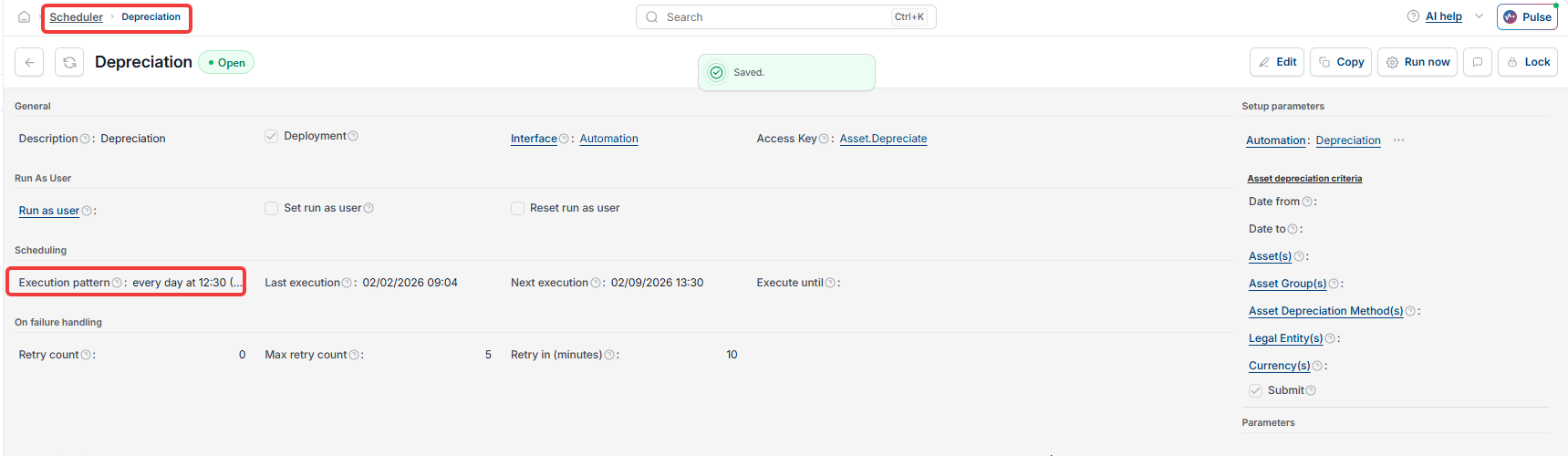
The depreciation automation can be set up as a scheduled event in the 'Scheduler', so it runs monthly without manual intervention. This avoids needing to trigger it manually at each period end.
Depreciate an asset
Run depreciation fixed assets
Reduce value of an asset automatically
Schedule depreciation
Asset depreciation journals
Depreciation not posting
Month end depreciation run
Asset book value reduce