

This article covers how to enable a workflow substitution as an end user, so a colleague can approve documents on your behalf while you are on holiday, on leave, or otherwise unavailable. Workflow substitution (sometimes called approval delegation or holiday cover) is managed in iplicit through the My Substitutions screen.
Substitutes must be pre-assigned to your user account by an administrator before you can enable them. You cannot select your own substitute - you can only enable or disable substitutes that an administrator has already approved for you.
For administrator setup, see 'How to assign workflow substitutes to a user'.
For an unplanned absence where the approver is already unavailable, admin approval may be more appropriate. See 'How to approve a document as an admin when the approver is unavailable'.
Enabling a substitute on the My Substitutions screen
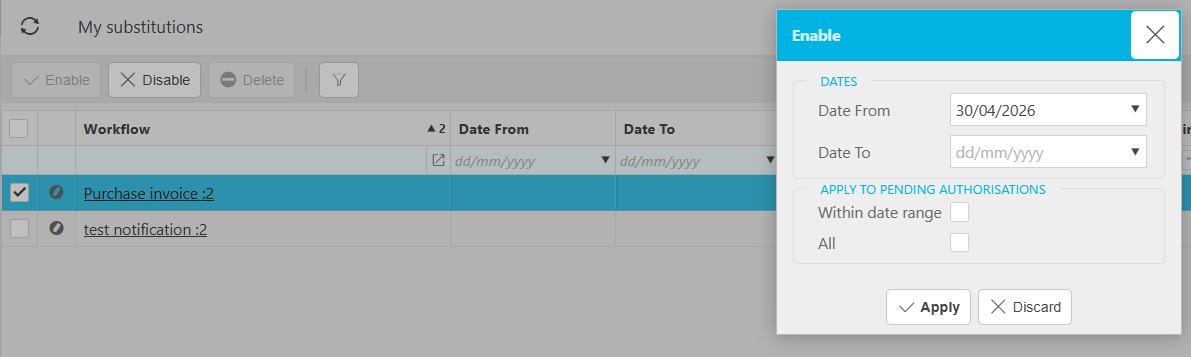
The My Substitutions screen lists every substitute that has been pre-assigned to you. You activate cover by enabling one of these substitutes for a defined period.
- Navigate to My Substitutions
- Locate the workflow or workflows you want to delegate
- Select the workflow you want to assign cover for
- Select 'Enable' to activate the substitute against that workflow
- Set the start and end dates for the period you will be away
- Select 'Apply' and save the changes.
The substitute can now approve documents on your behalf for the workflows you have enabled, between the dates you have set. Outside of those dates, approvals route to you as normal.
When you cannot select the substitute you want
If the colleague you want as your substitute does not appear in the list, the most common cause is that an administrator has not yet added them as an approved substitute on your user account.
- Substitutes are configured by administrators against each user account
- You will only ever see substitutes that have been pre-approved for you by an administrator
- If the person you need is not listed, contact an administrator at your organisation and ask them to add the substitute to your account.
For example, if you want the CEO to approve on your behalf but they are not in your list, an administrator will need to add them as an approved substitute before you can enable that substitution.
Disabling a substitute when you return
Workflow substitutions remain active until the end date you set, or until you disable them manually.
- Navigate to My Substitutions
- Select the active substitute
- Select 'Disable' to deactivate the substitution immediately, or amend the end date if you want it to expire on a different date
- Apply and save the changes.
Assign someone my approvals while I am away
Delegate approvals
Enable workflow substitutes
My approvals while on leave
Holiday for approvals