

This article covers changing the wording of automated emails in Communication Setup, sometimes called email templates. This includes the emails sent with sales invoices, statements and reminder letters.
Merge fields in Communication Setup emails
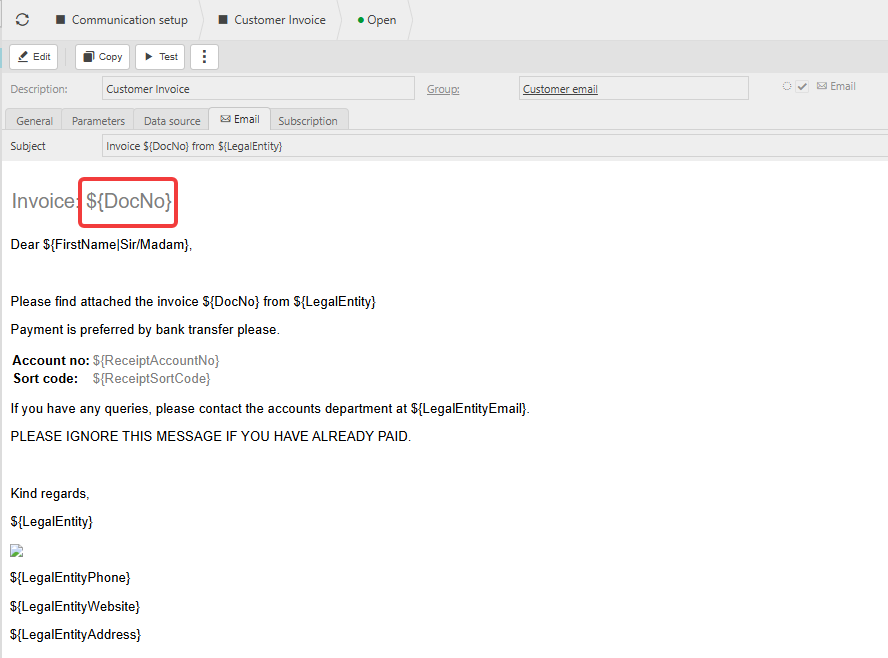
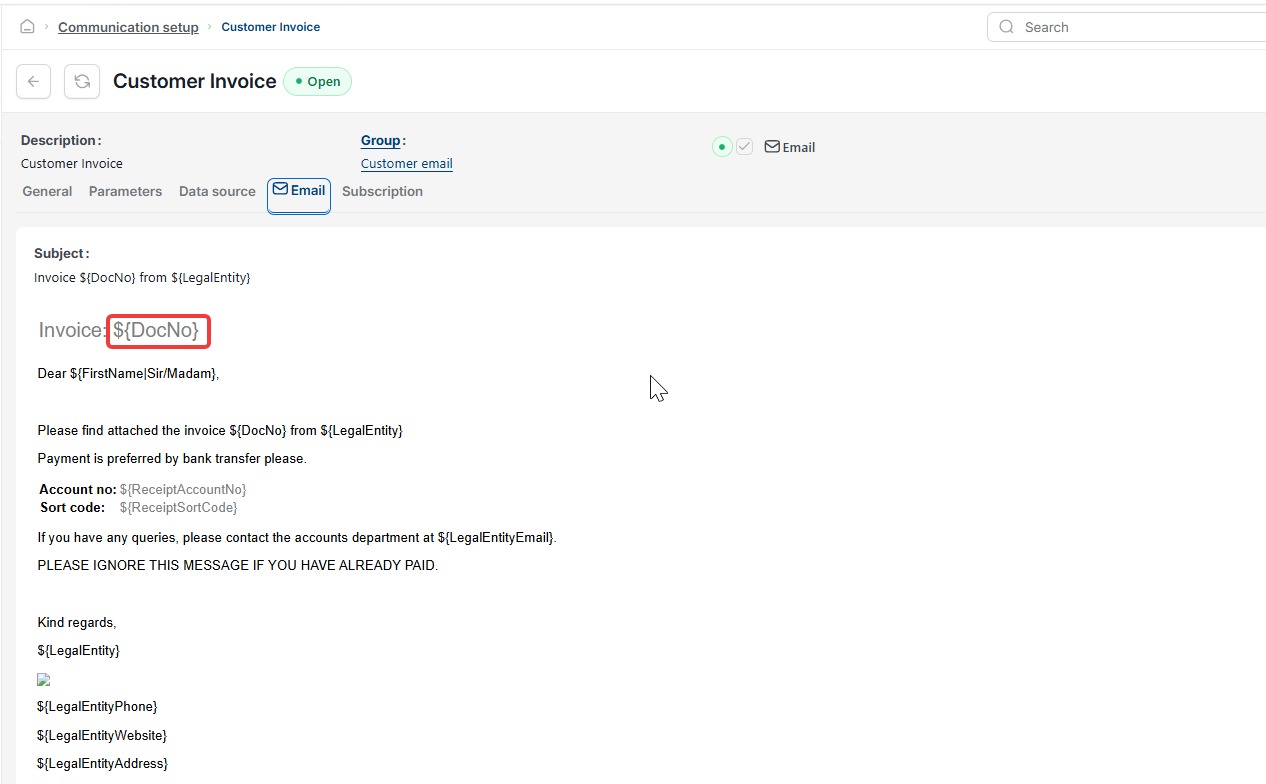
Some parts of a Communication Setup email body start with ${ and end with }. These are merge fields. iplicit fills them in automatically with information from the document, such as the customer name or invoice number.
Do not change, rename or delete merge fields. If a merge field breaks, the email shows a blank or an error instead of the information.
Changing the email body text in Communication Setup
- Search for 'Communication Setup' and open it
- Double-click the email communication you want to change, for example the sales invoice email
- Select the 'Email' tab
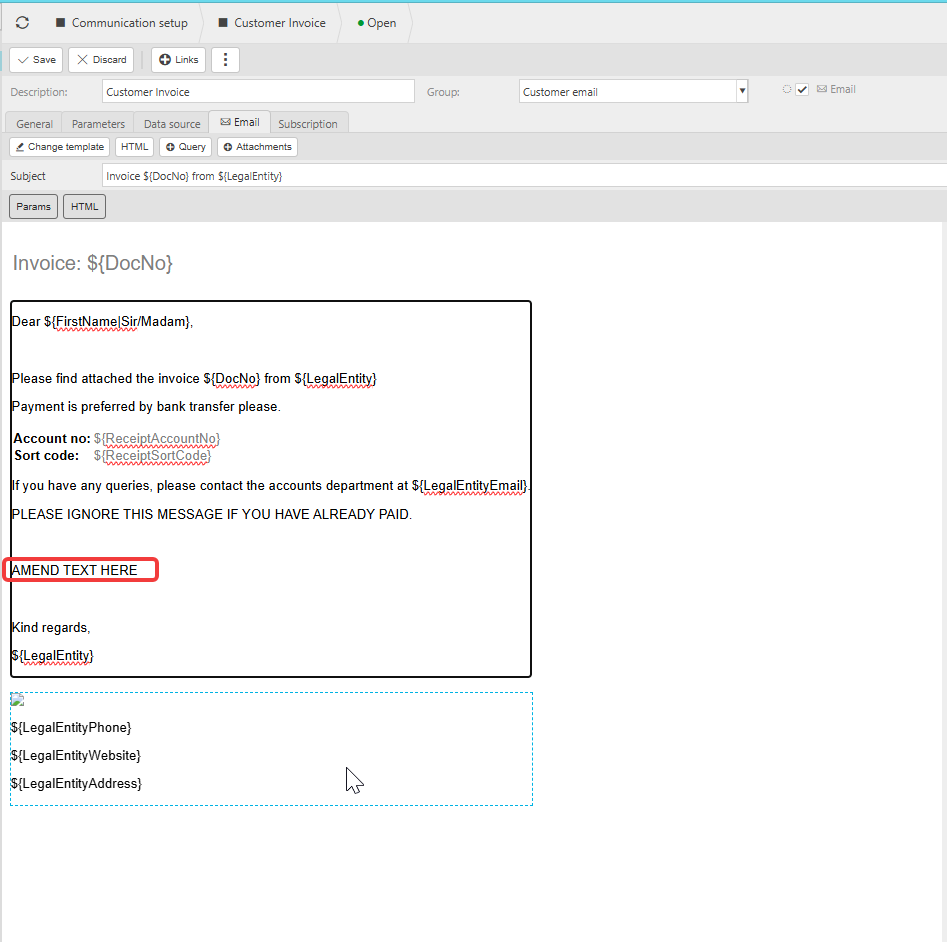
- Select 'Edit'
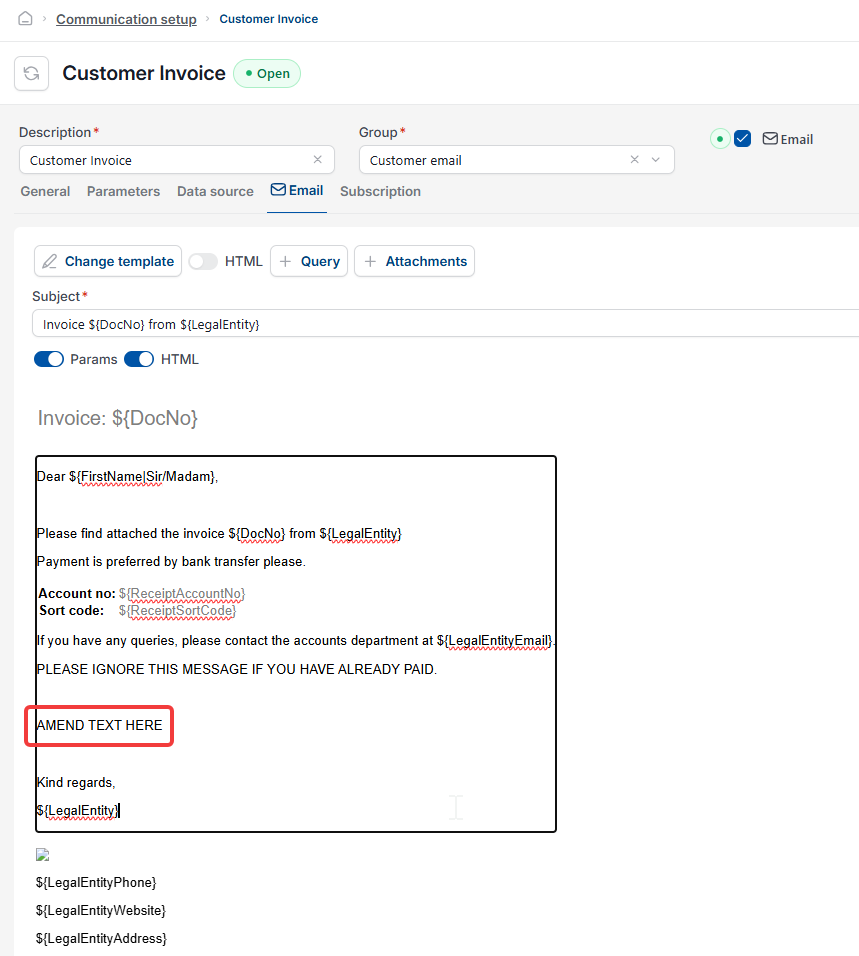
- In the email body, change the text you want. Leave anything between ${ and } exactly as it is
- To paste text from Word or another email, press Ctrl + Shift + V (Cmd + Shift + V on a Mac). This pastes plain text without hidden formatting that can break the email layout
- Select 'Save'
- Select 'Test', enter a document number and check the wording in the email preview.
Things to know about changing Communication Setup email wording
- Your new wording is used for every email sent with this communication from now on. Emails already sent do not change
- If you have more than one Legal Entity, check whether they share this communication before changing it
- If the email layout looks wrong after pasting, delete the pasted text, paste it again with Ctrl + Shift + V and save.
Change email wording
Edit email template
Edit invoice email text
Customise email body
Change automated email message
Update email text
Email template wording
Email formatting broken after pasting