

This article covers changing the currency on an expense line. Unlike a purchase invoice, sale invoice or manual journal, the currency field on an expense line is hidden by default. You need to enable it first using the 'Amend currency' option before you can select a currency. Each line on an expense can use a different currency. If you need to change currency on an invoice or journal instead, see 'How to change the currency on a purchase or sale invoice' or 'How to change the currency on a manual journal'.
How to change the currency on an expense line
- Select the expense line you want to change
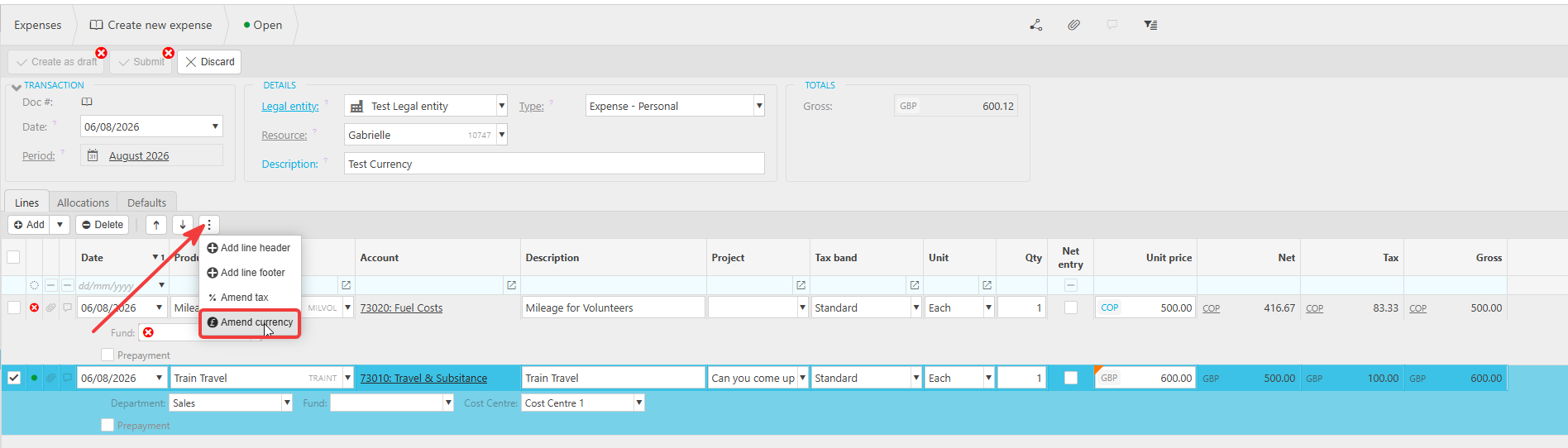
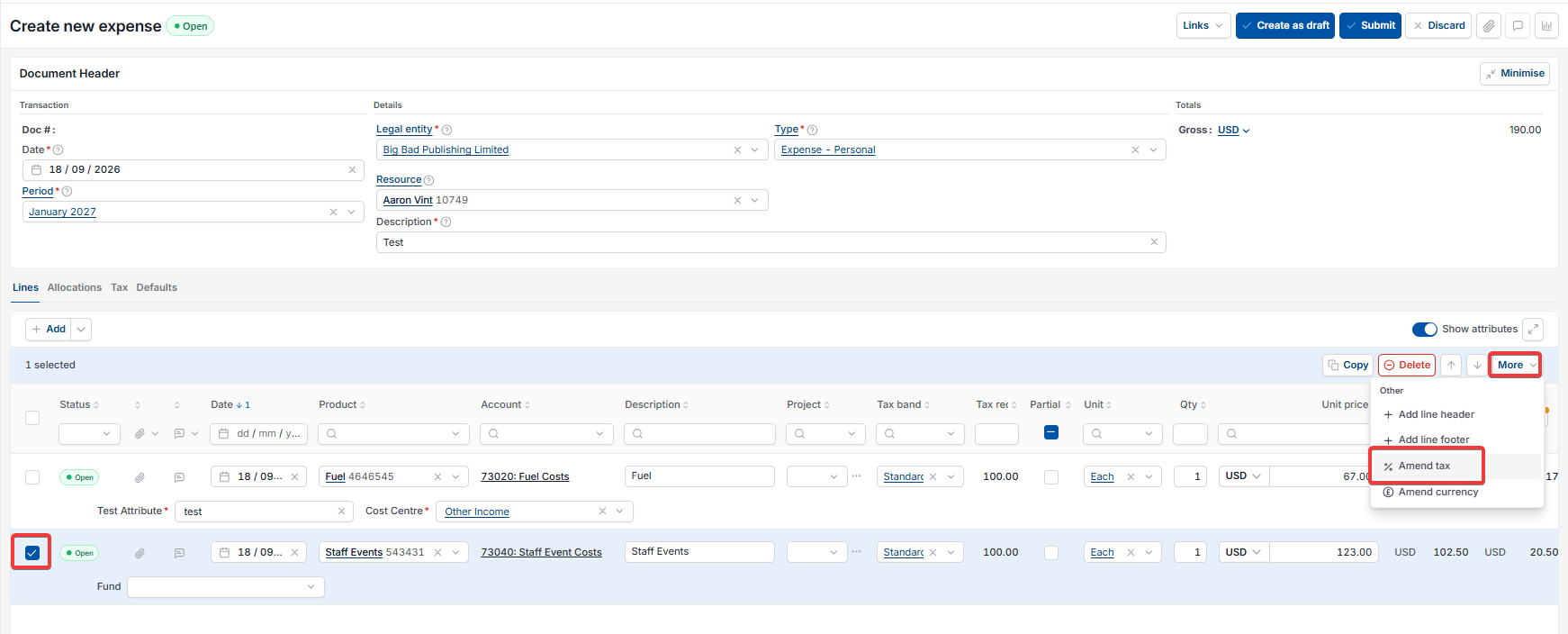
- Depending on your screen, select the three-dot menu above the line, or highlight the line and select the 'More' button
- Select 'Amend currency' from the menu that opens
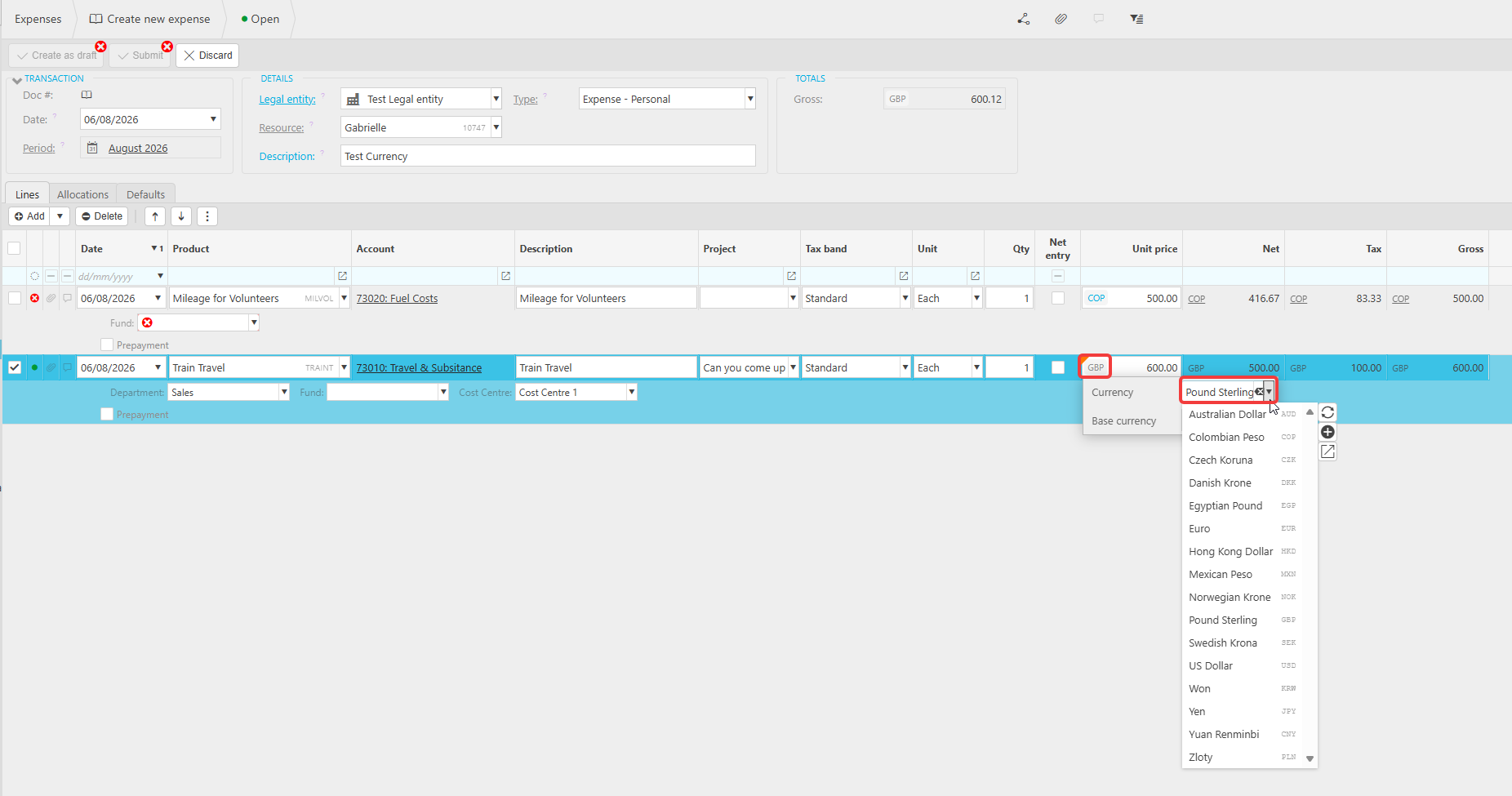
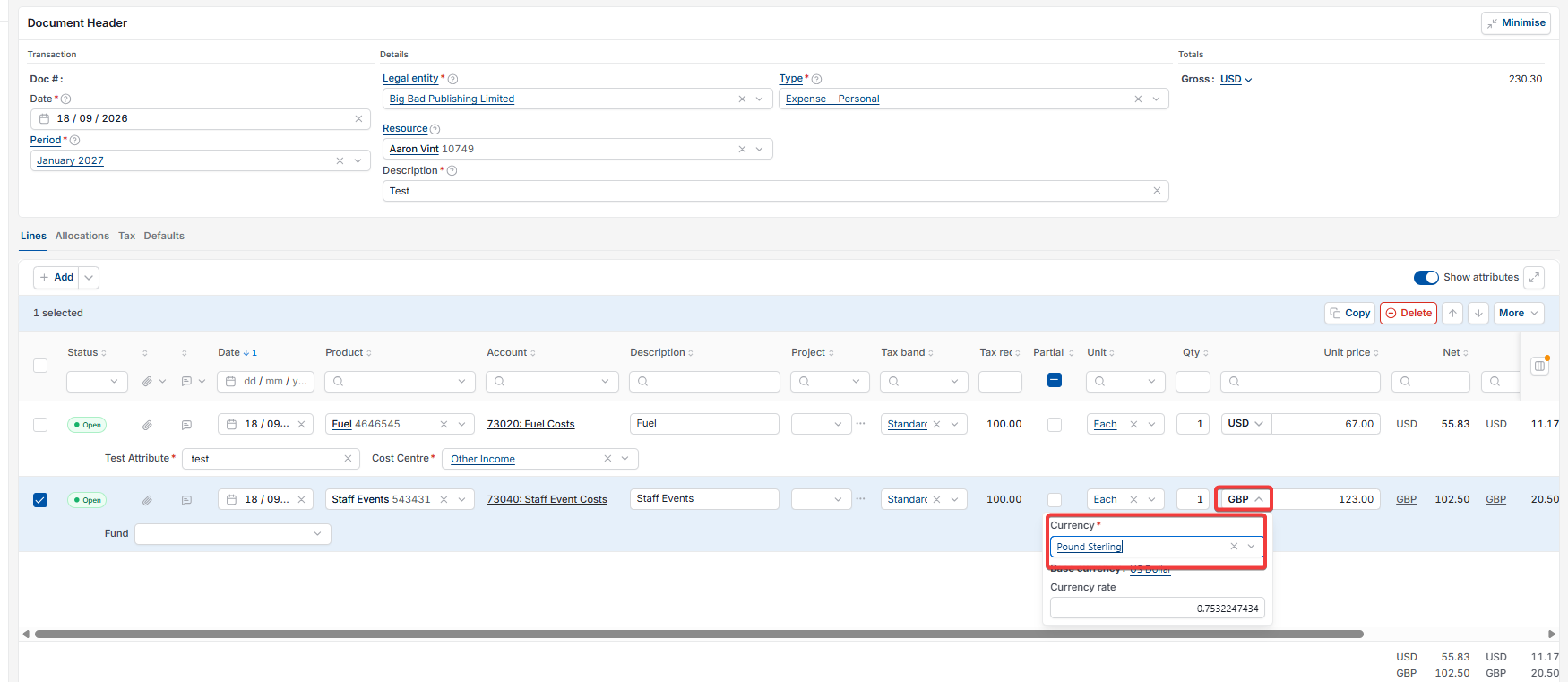
- iplicit enables the currency field on the 'Unit price' box for that line, set to your base currency by default – for example, GBP
- Select this currency code to open the list of available currencies
- Select the currency you want to use for this line.
Using multiple currencies on one expense
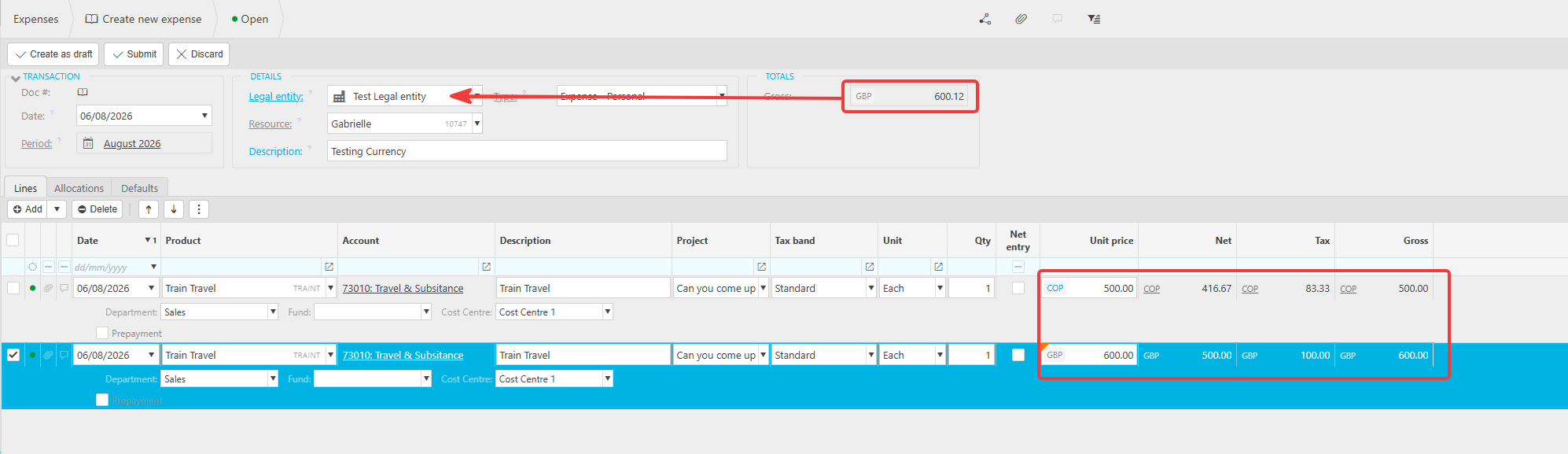
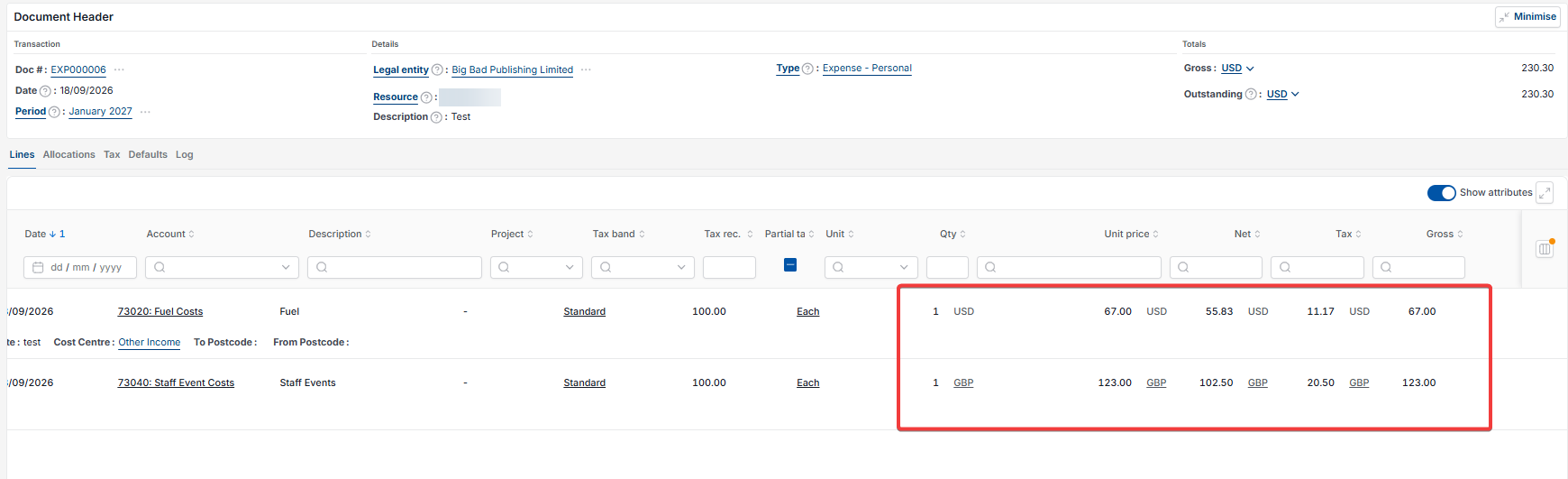
You can set a different currency on each line of the same expense. For example, one line can be in Colombian Peso (COP) and another in Pound Sterling (GBP), within the same expense document.
The Gross total shown at the top of the expense, in the Totals section, always displays in the base currency of the legal entity you selected – regardless of which currencies you used on individual lines.
Change expense currency
Amend currency expense
Expense line currency
Foreign currency expense
Expense currency dropdown
Multiple currencies on expense
Expense total wrong currency