

This article covers how intercompany behaviour is controlled on a Chart of Accounts account in iplicit. Two settings work together – the 'Interco' tick box on the account, and the 'InterCo' attribute on the account's chart of account rule. The two must agree, or postings to that account will error.
The two settings that control intercompany behaviour
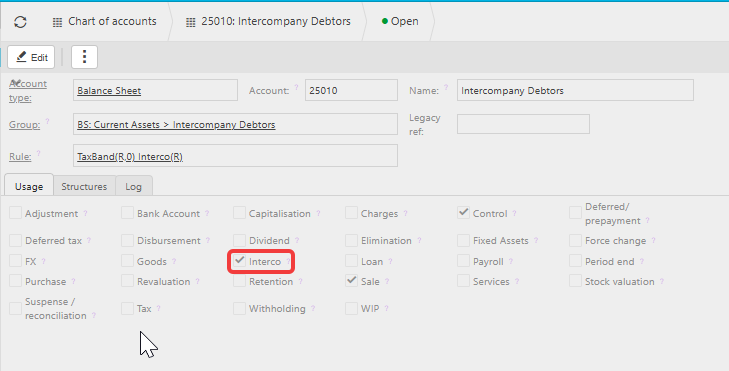
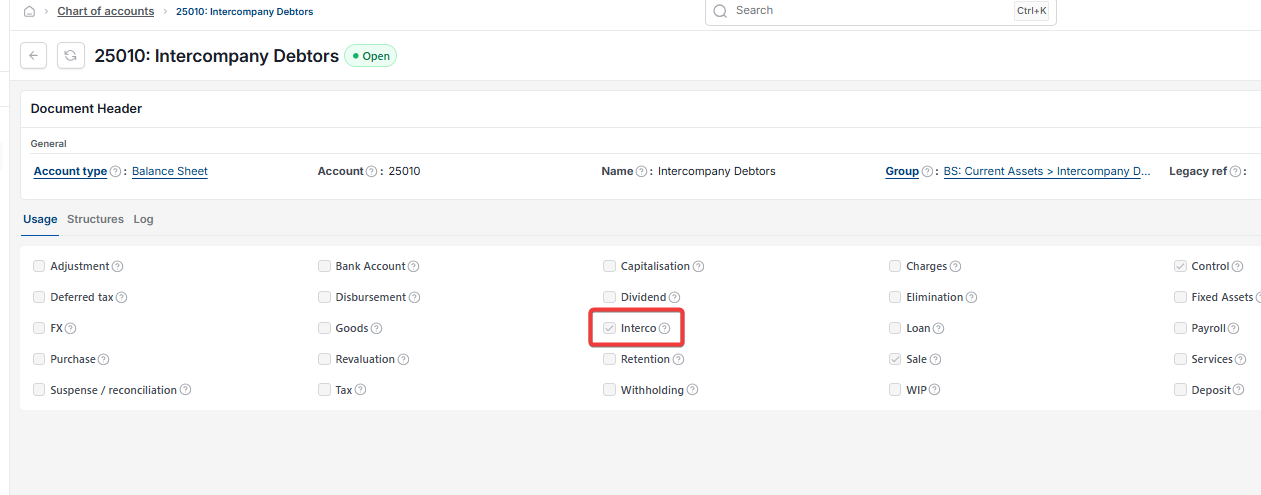
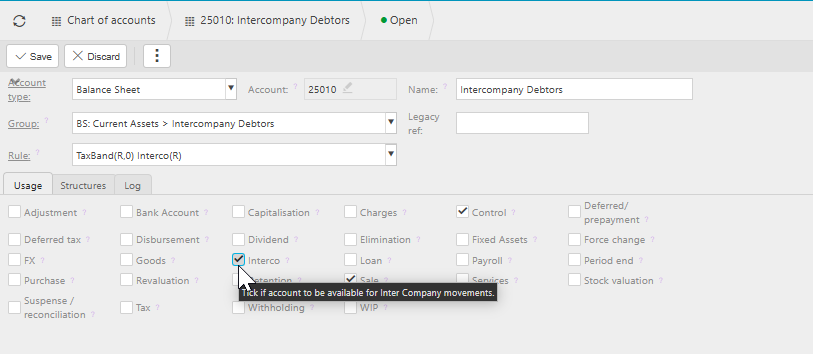
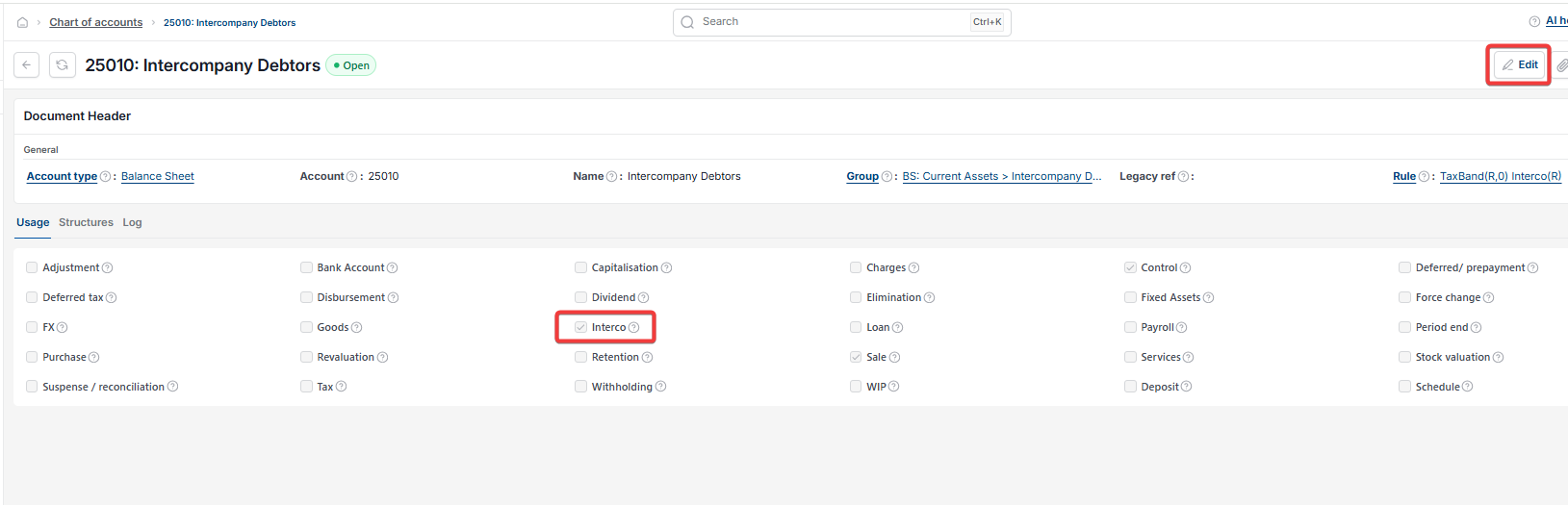
The 'Interco' tick box sits on the chart of account record, under the 'Usage' tab. It tells iplicit whether the account is intended for intercompany postings.
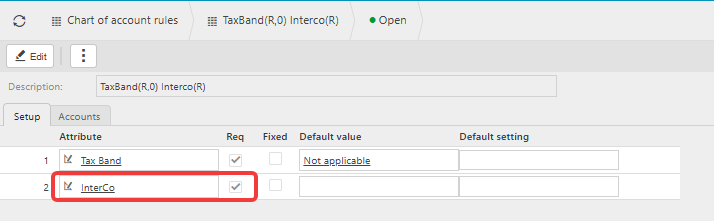
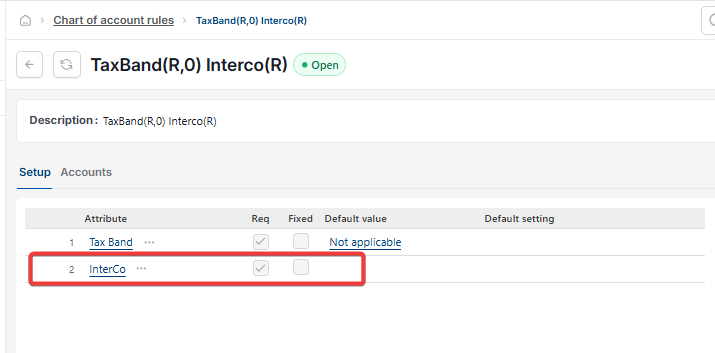
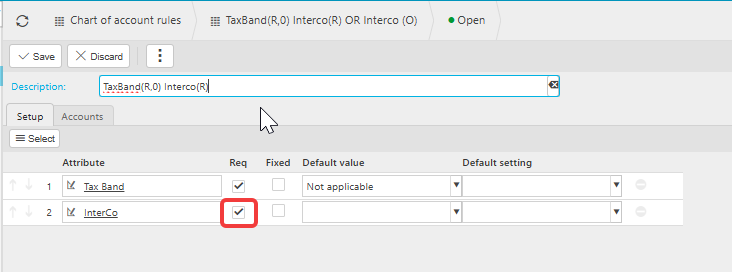
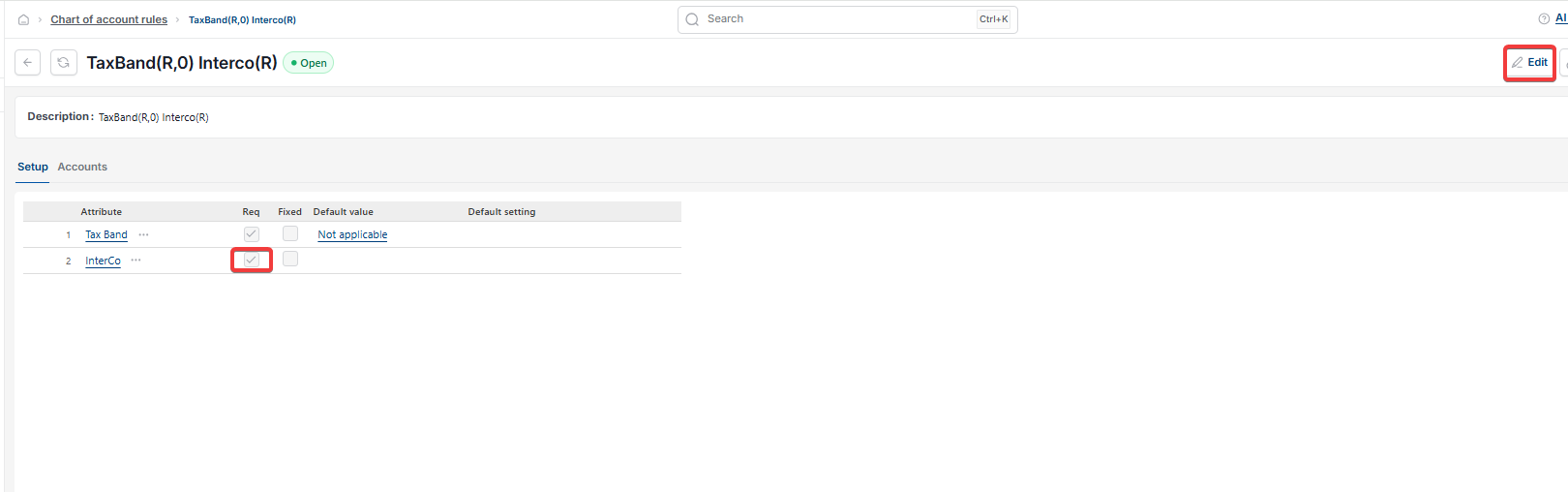
The 'InterCo' attribute sits on the chart of account rule, under the 'Setup' tab. When the attribute is present on the rule, the 'Req' column controls whether it's mandatory on postings – ticked means required, unticked means optional. A rule's description shows this state, for example 'TaxBand(R,0) Interco(R)' means Interco is required on that rule.
Valid combinations of the account tick box and rule attribute
- Tick box ticked, attribute required – the account behaves as a standard intercompany account. Use this for an account that's always an intercompany account, such as Intercompany Balances
- Tick box unticked, attribute optional – use this on P&L accounts where you want to trigger multico automation
- Tick box unticked, attribute not on the rule – the account isn't used for intercompany postings, and no intercompany information is recorded.
Combinations to avoid on an account and its rule
- Tick box ticked, attribute not on the rule – this errors on posting. Either untick the box on the account, or add the InterCo attribute to the rule with 'Req' ticked
- Tick box unticked, attribute required – this also errors on posting. Either tick the box on the account, or change the rule so the attribute is optional or removed
- Tick box ticked, attribute optional – this forces Interco to behave as mandatory on every posting to the account.
On a P&L account, the last combination stops multico automation working, because the automation relies on Interco being optional so it can post unspecified lines to the primary legal entity. Only use it if you have a specific reason to make intercompany mandatory on an account that would otherwise be optional.
How to change the Interco tick box on an account
- In the quick launch menu search box, type 'Chart of accounts' and open it
- Locate the account
- Select 'Edit'
- Open the 'Usage' tab
- Tick or untick 'Interco' as required
- Select 'Save'.
How to change the InterCo attribute on a chart of account rule
- In the quick launch menu search box, type 'Chart of account rules' and open it
- Locate the rule
- Select 'Edit'
- Open the 'Setup' tab
- Add, remove or amend the 'InterCo' attribute and the 'Req' tick box as required
- Update the rule's description to reflect the new setup, for example 'Interco(R)' or 'Interco(O)', so it's easy to identify when selecting it elsewhere
- Select 'Save'.
Changes to a rule affect every account using that rule. If you only want to change behaviour for one account on the rule, point that account at a different rule instead.
Troubleshooting an intercompany mismatch error on posting
If a journal errors because the account's Interco tick box and its rule's InterCo attribute disagree:
- Open the chart of account record for the account on the failing journal line, and check the 'Interco' tick box on the 'Usage' tab
- Open the chart of account rule assigned to that account, and check whether the 'InterCo' attribute is present and whether 'Req' is ticked
- Compare the two against the valid combinations above, and decide which setting is wrong for your intended behaviour
- Amend either the account or the rule to bring the two into agreement.
If the error continues after the account and rule agree, check that:
- The legal entity referenced in the journal is active, and you have permission to post to it
- No other account on the same journal has a conflicting intercompany setting
- The period is open for posting.
If the error persists after these checks, contact iplicit support. For the full error walkthrough, see 'Why am I seeing an intercompany error when posting a journal'.
Interco tick box explained
InterCo attribute chart of account rule
Valid interco combinations
Intercompany error posting journal
Change interco setting account