

This article covers the lines section on iplicit documents, such as sales invoices and purchase invoices. It explains how to add a new line (row) and how to see more lines on screen. To change which columns show, see 'How to show more rows and change columns on iplicit finders and documents'.
Lines (the individual items or charges on a document) sit on the 'Lines' tab, below the Document Header. The lines section works the same way on every iplicit document that has lines.
Adding a new line to an invoice or other iplicit document
- Open the document you are entering, for example a sales invoice.
- Select the 'Lines' tab below the Document Header.
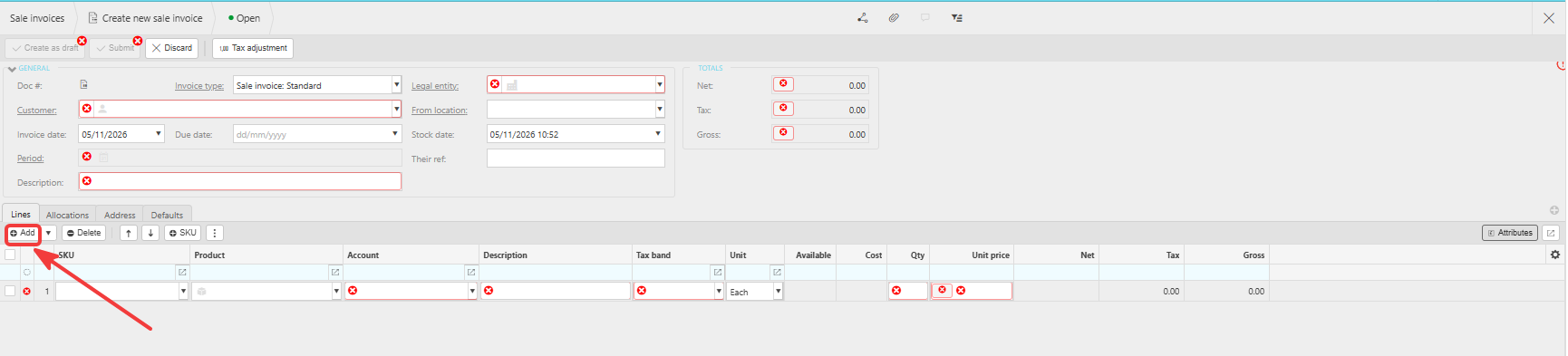
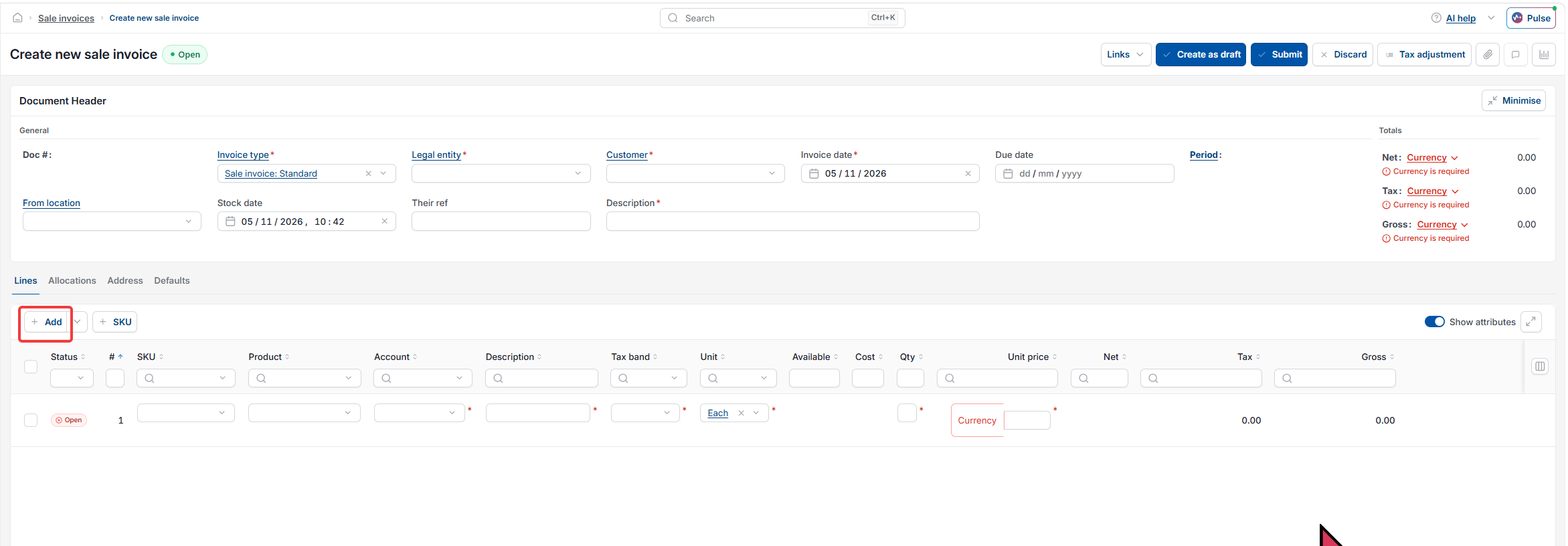
- Select 'Add' at the top left of the lines section.
- Complete the fields on the new line, such as 'Account', 'Description', 'Tax band', 'Qty' and 'Unit price'.
- Select 'Add' again for each further line.
Fields marked with an asterisk (*) are required on every line.
You cannot add lines to a document once it is posted. To change a posted document, see 'How to edit information on a posted document'.
Seeing more lines on an invoice or other iplicit document
If the lines section on a document shows only a few lines, these options give the lines more space or reveal lines that are hidden:
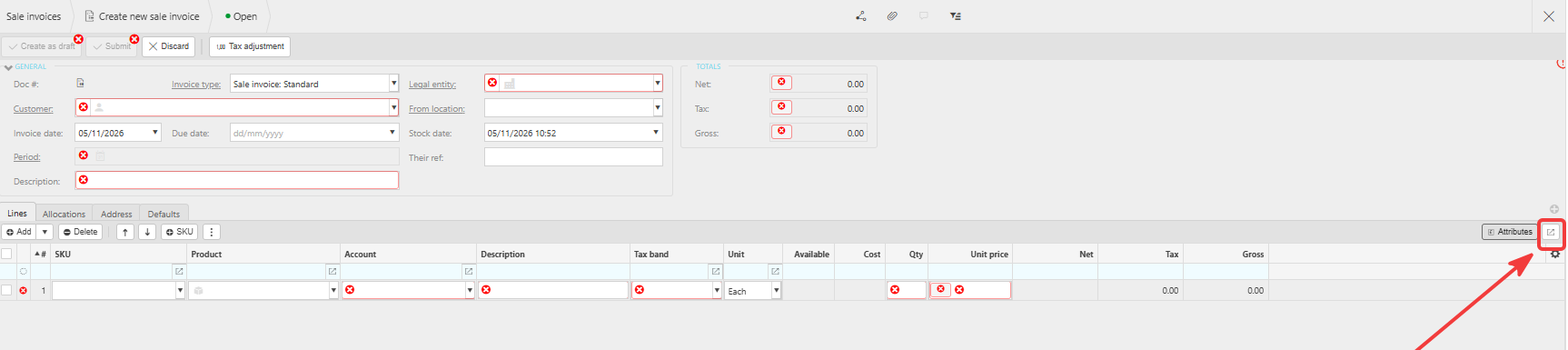
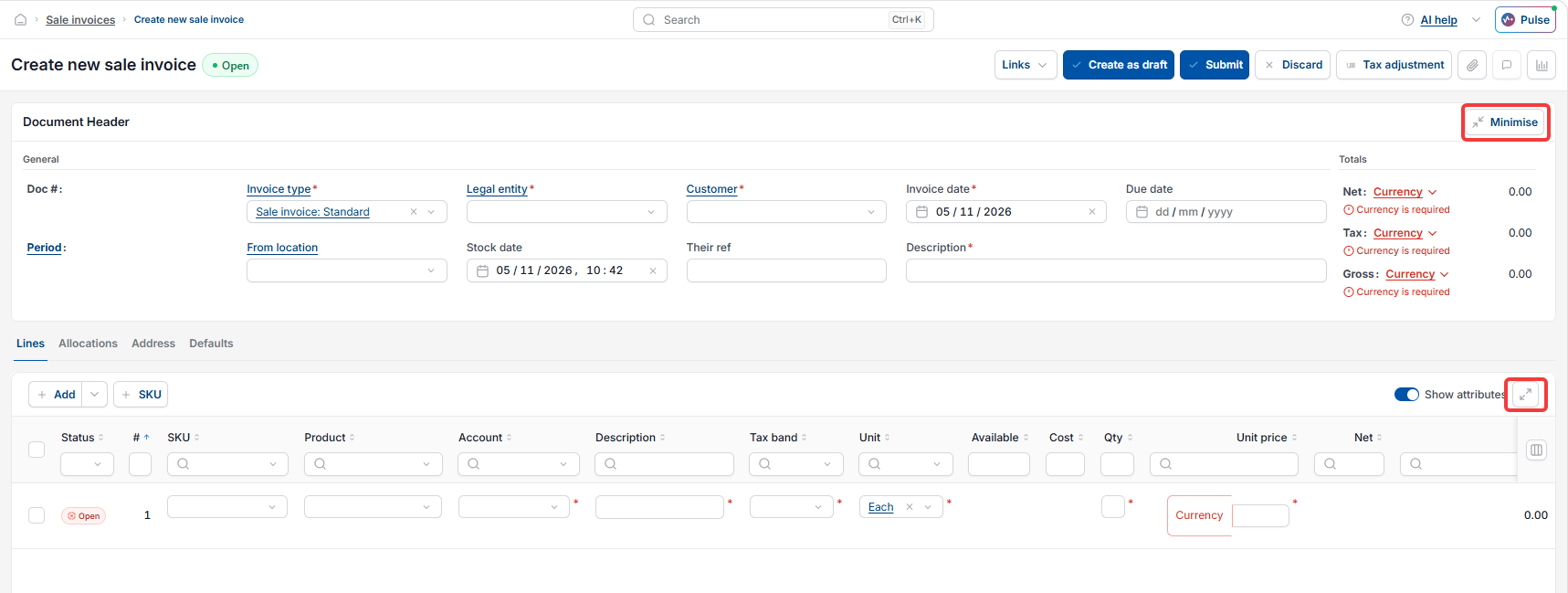
- Select the expand icon at the top right of the lines section, next to 'Show attributes' or 'Attributes', to enlarge the lines section
- If you see a 'Minimise' button at the top right of the Document Header, select it to collapse the header fields
- Clear any text in the filter row beneath the column headers, because a filter hides lines that do not match
- Scroll down within the lines section to check for lines below the visible area.
Select the expand icon again to return to the full document.
If you see a 'Configure' button at the top right of the lines table, you can also change the table density to fit more lines on screen. See 'How to show more rows and change columns on iplicit finders and documents'. Hiding columns does not show more lines, it only changes which details each line shows.
Add line to invoice
Add row
Invoice lines not showing
More rows on invoice
Purchase invoice lines
Sales invoice lines
Document lines
Invocie lines