

This article covers arranging fields in iplicit enquiries, such as the Trial Balance, into rows, columns and data. It does not cover finders or documents, which work differently – see 'How to show, hide and reorder columns on iplicit finders and documents'.
Opening the panel
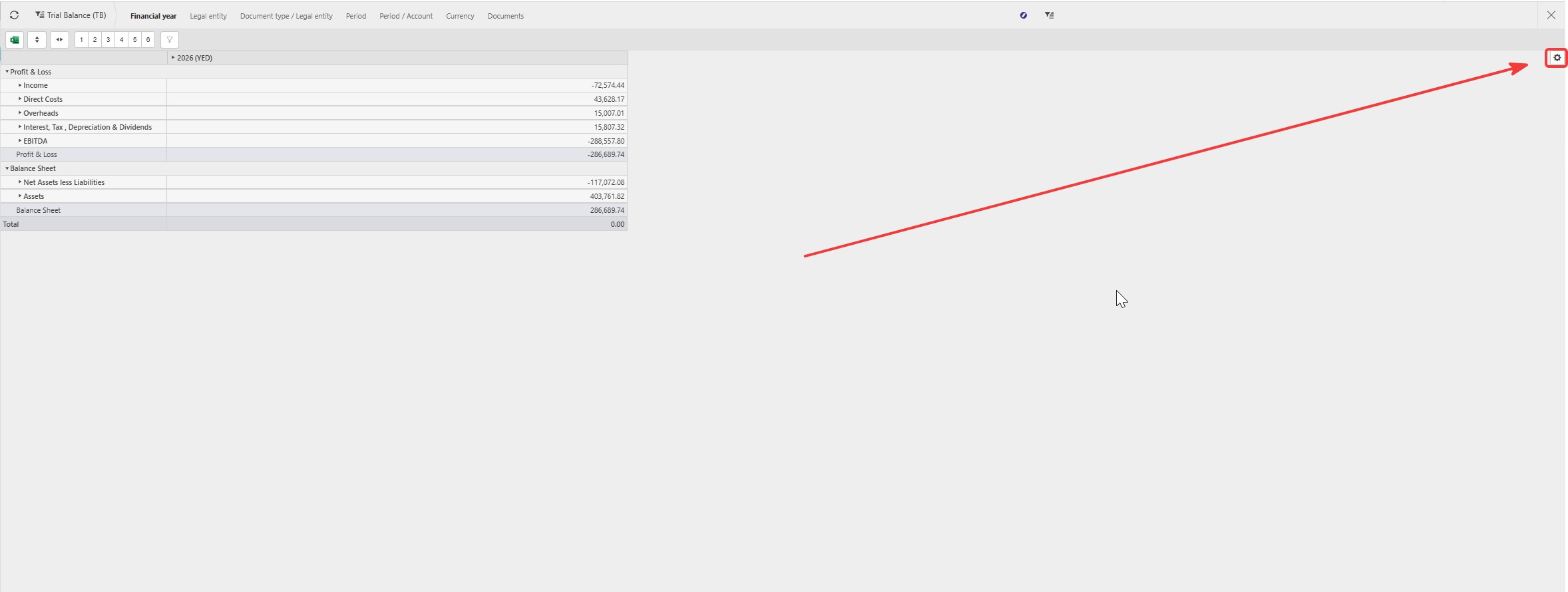
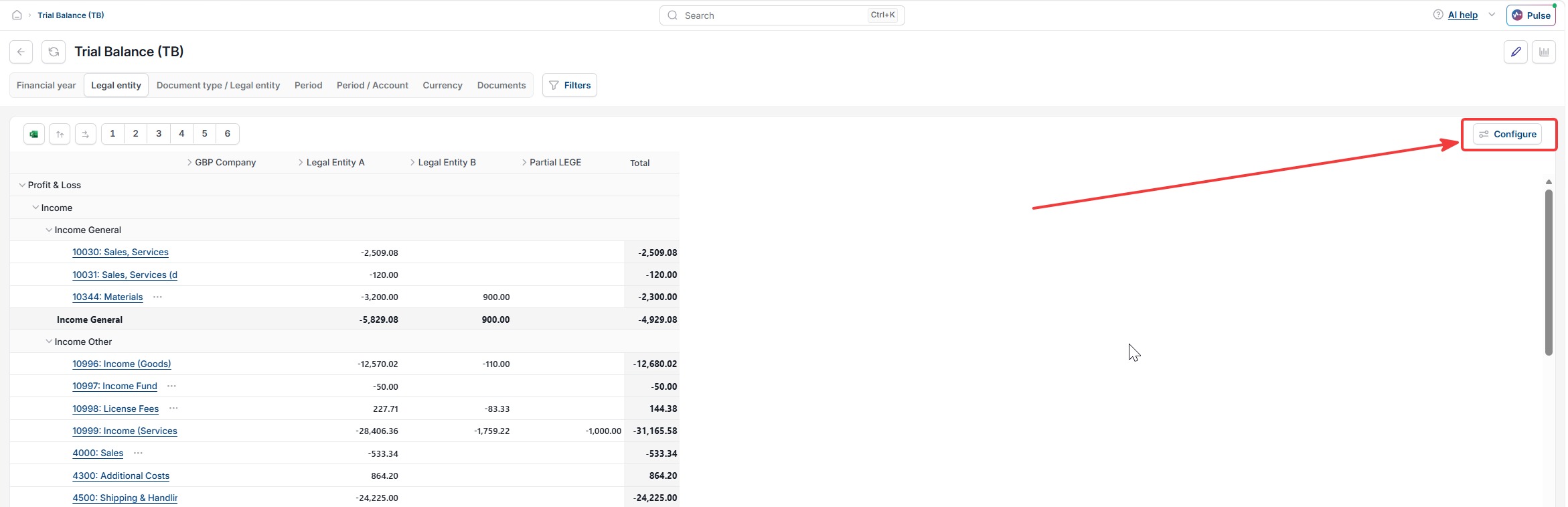
Look for a small icon in the top right corner of the enquiry screen. It may appear as a cog or as a 'Configure' button, depending on your screen. Both open the same panel.
Think of it like building a pivot table in a spreadsheet. You choose what goes across the top, what goes down the side, and what value sits in the middle.
Adding fields
- Select the icon in the right corner of the enquiry above the table
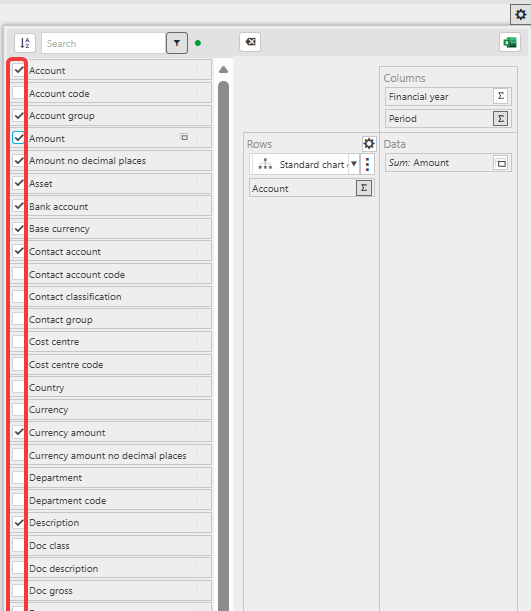
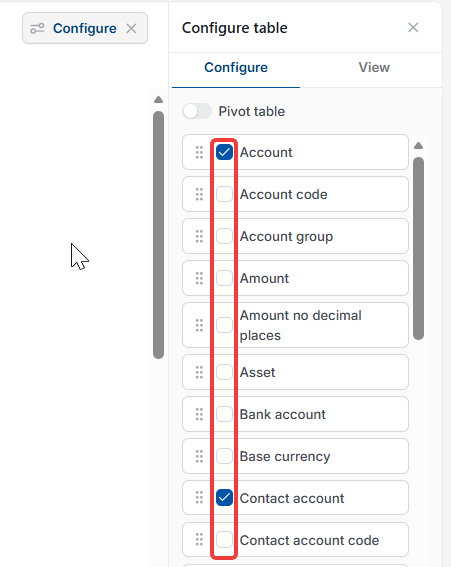
- A list of available fields appears
- Select a field to add it
- Deselect a field to remove it.
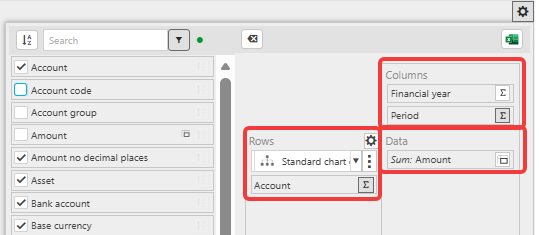
Fields you want to group by, such as account or department, go in rows. Fields you want to compare side by side, such as financial year or period, go in columns. The figure you want to see, such as an amount, goes in data.
Arranging fields into rows, columns and data
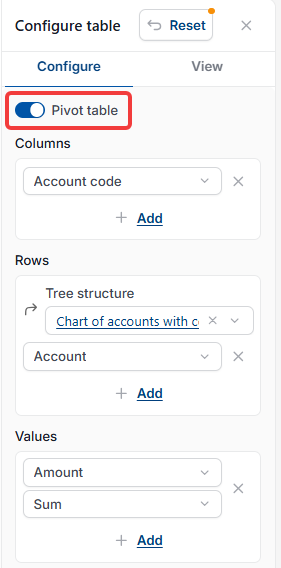
If a 'Pivot table' toggle is available, switch it on before arranging fields. If there is no such toggle, you can arrange fields directly.
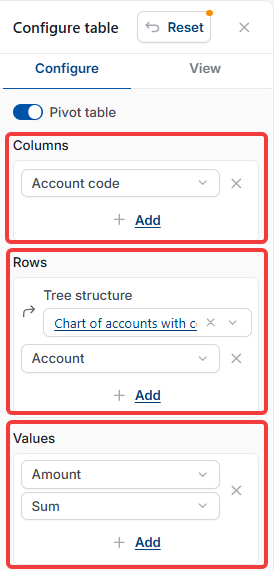
- Add a field under 'Row groups' or 'Rows' – for example account, using 'Tree structure' if offered, to group by chart of accounts
- Add a field under 'Columns' – for example financial year or period
- Add a field under 'Data' – for example the sum of amount
- The enquiry updates automatically to reflect your changes.
Resetting your changes
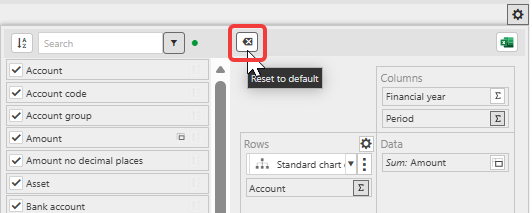
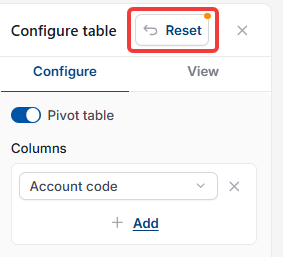
Select the reset icon or button within the panel to return the enquiry to its default layout. It may be labelled 'Reset' or shown as an icon with a 'Reset to default' tooltip. This cannot be undone.
Changing table density and totals
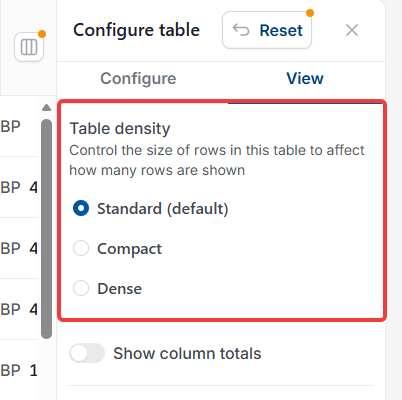
If your panel has a 'View' tab, select it to control how the enquiry looks. 'Table density' sets how many rows are shown – 'Standard', 'Compact' or 'Dense'. A 'Show column totals' toggle adds or removes a totals row. If you do not see a 'View' tab, this option is not available on your screen.
Pivot table iplicit
Row groups
Trial Balance columns
Enquiry settings
Configure enquiry
Change enquiry layout