

This article covers logging in to iplicit using SSO, once your account is already linked to your SSO provider. If you haven't linked your account yet, see 'How to link a new user to SSO'. If you're not sure whether SSO is enabled for your organisation, or you don't see an SSO option at login, check with your iplicit administrator.
Logging in with SSO
- Go to login.iplicit.com
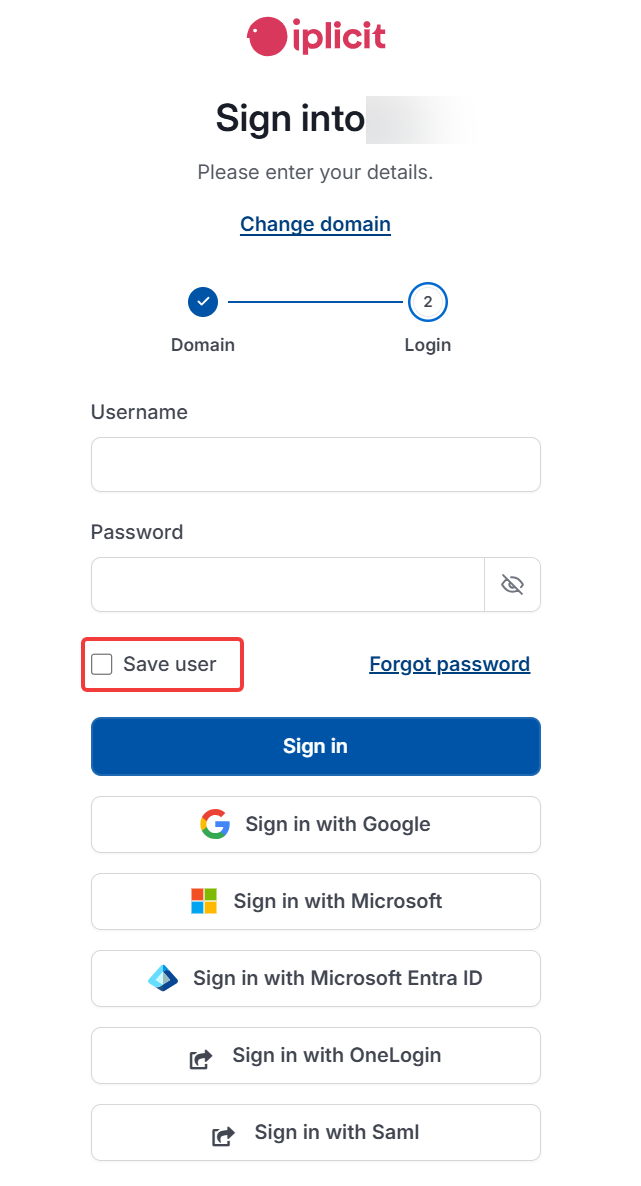
- Select the sign-in button for your provider - for example, Microsoft, Google, or OneLogin
- Sign in on your provider's own login page, using your usual credentials for that provider
Once authenticated, you're taken straight into iplicit.
Remembering this device
At login, you can choose to remember the device you're using. If selected, iplicit trusts that device for thirty days, so you won't be asked to reauthenticate through your provider each time you log in from it during that period.
Trusted devices can be reviewed and removed at any time from your Security settings.
Log in with SSO
SSO login iplicit
Sign in with Microsoft
Sign in with Google
Sign in with OneLogin
Remember this device